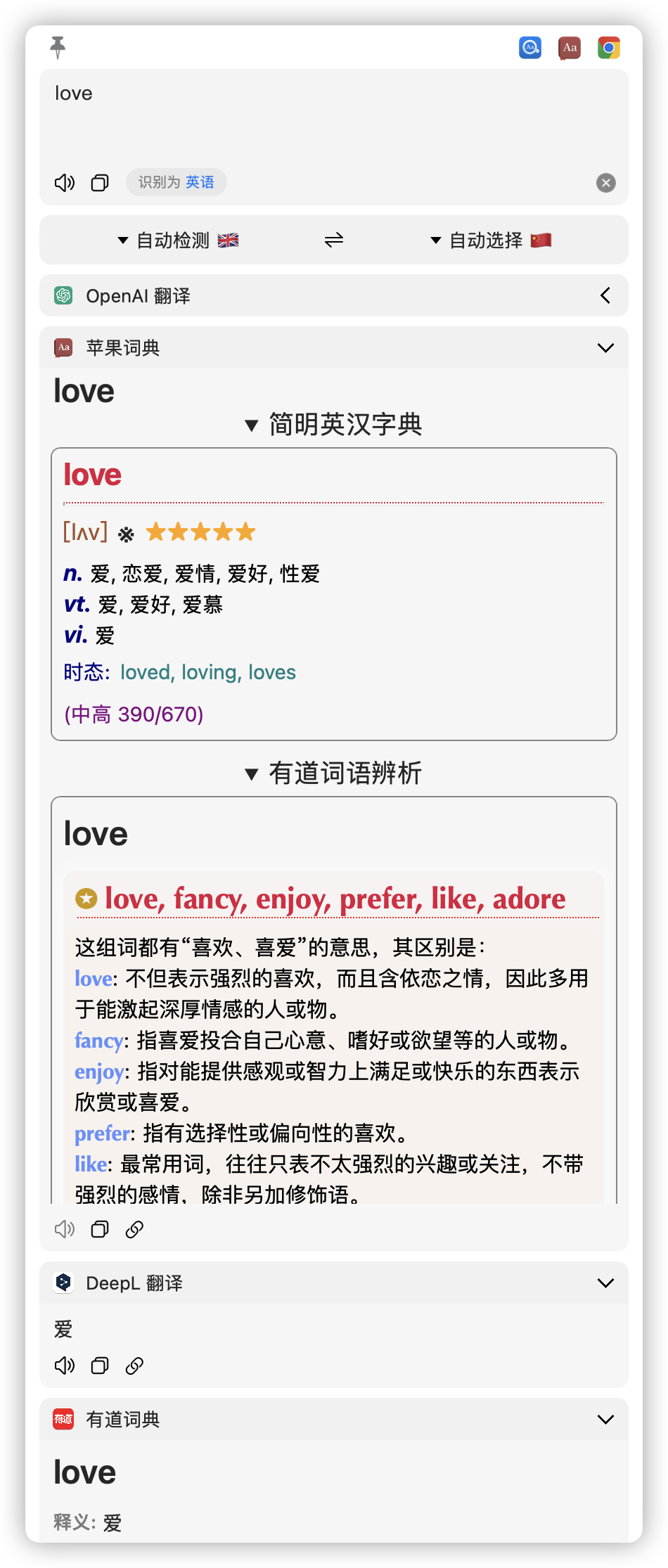
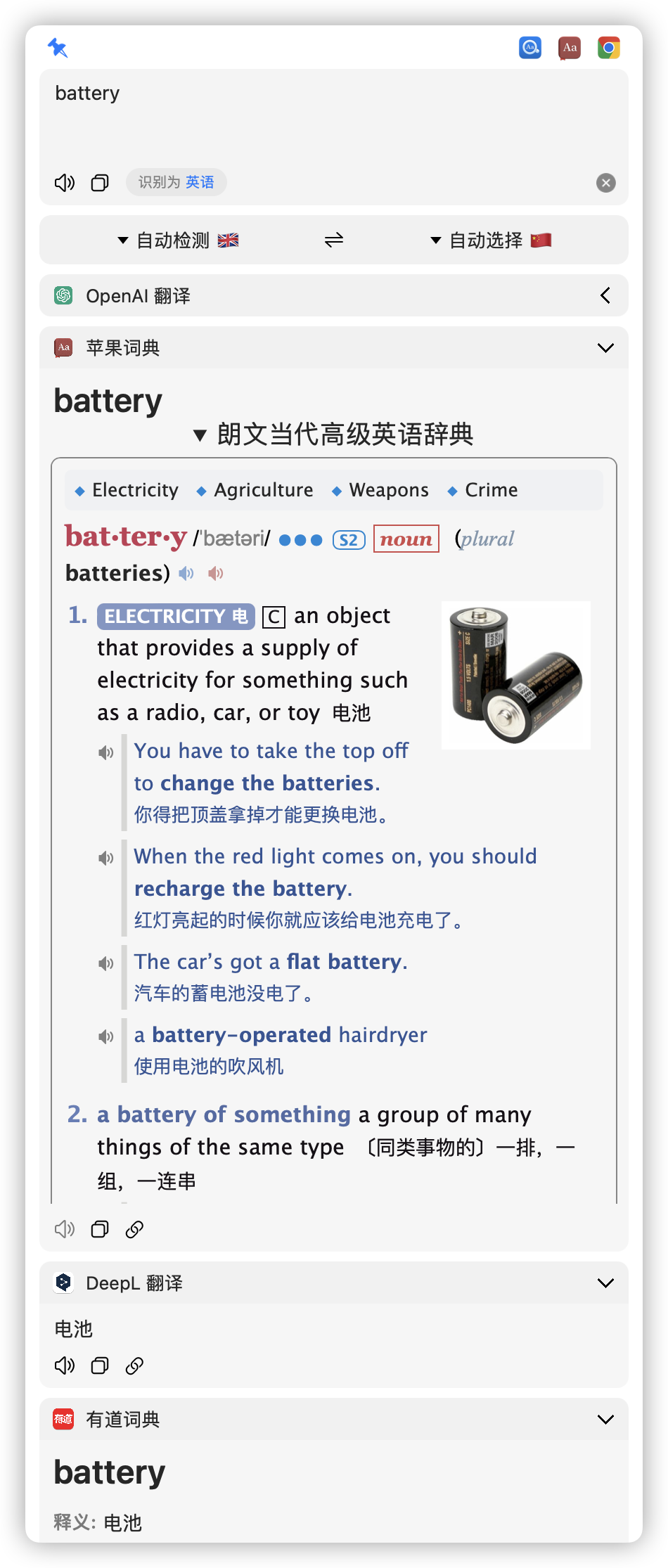
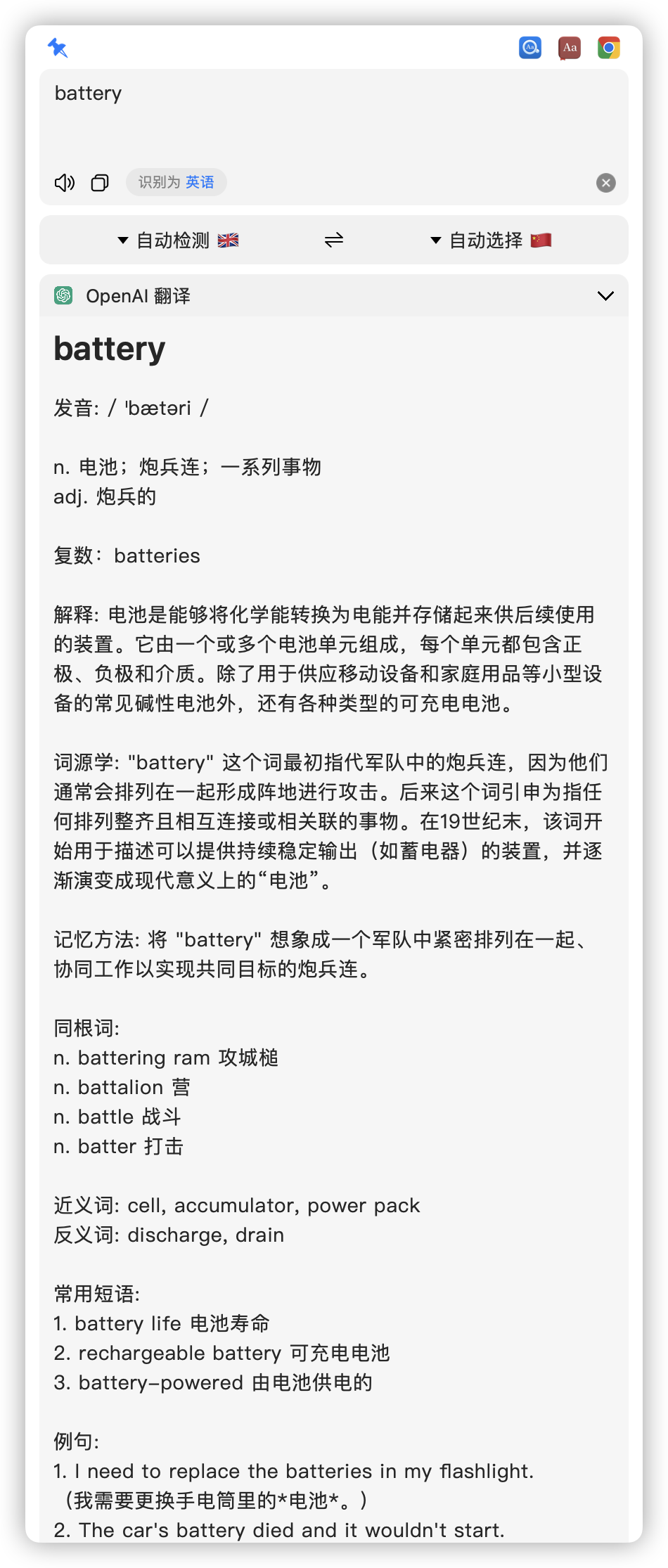
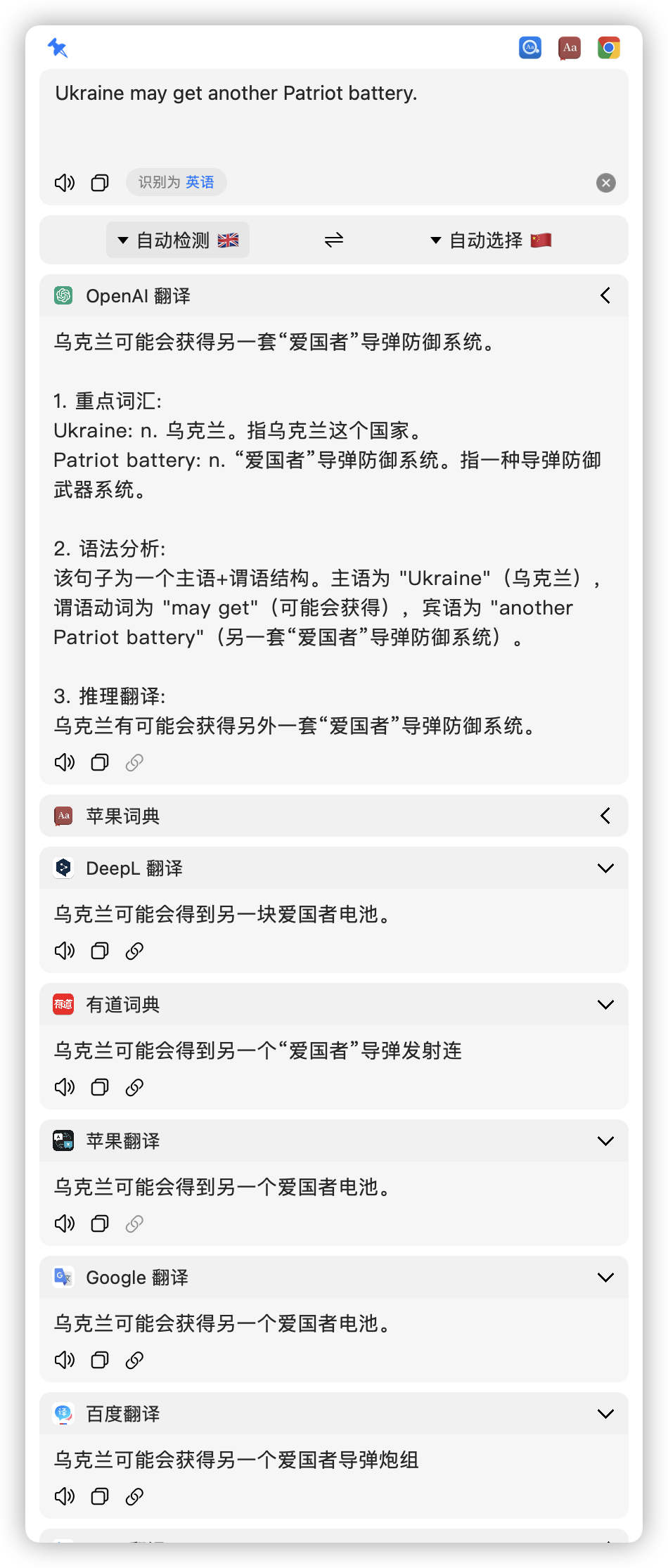
## Easydict
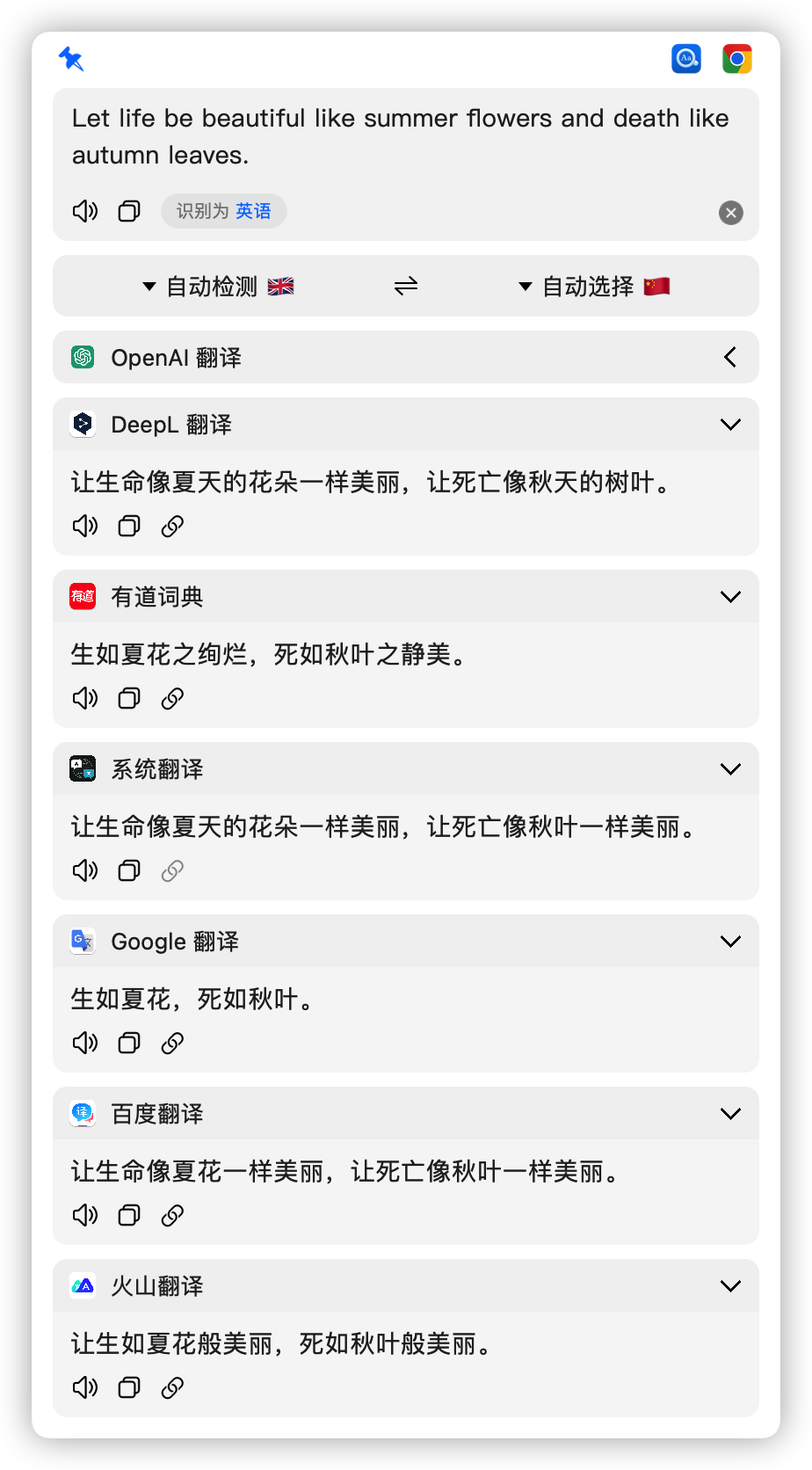
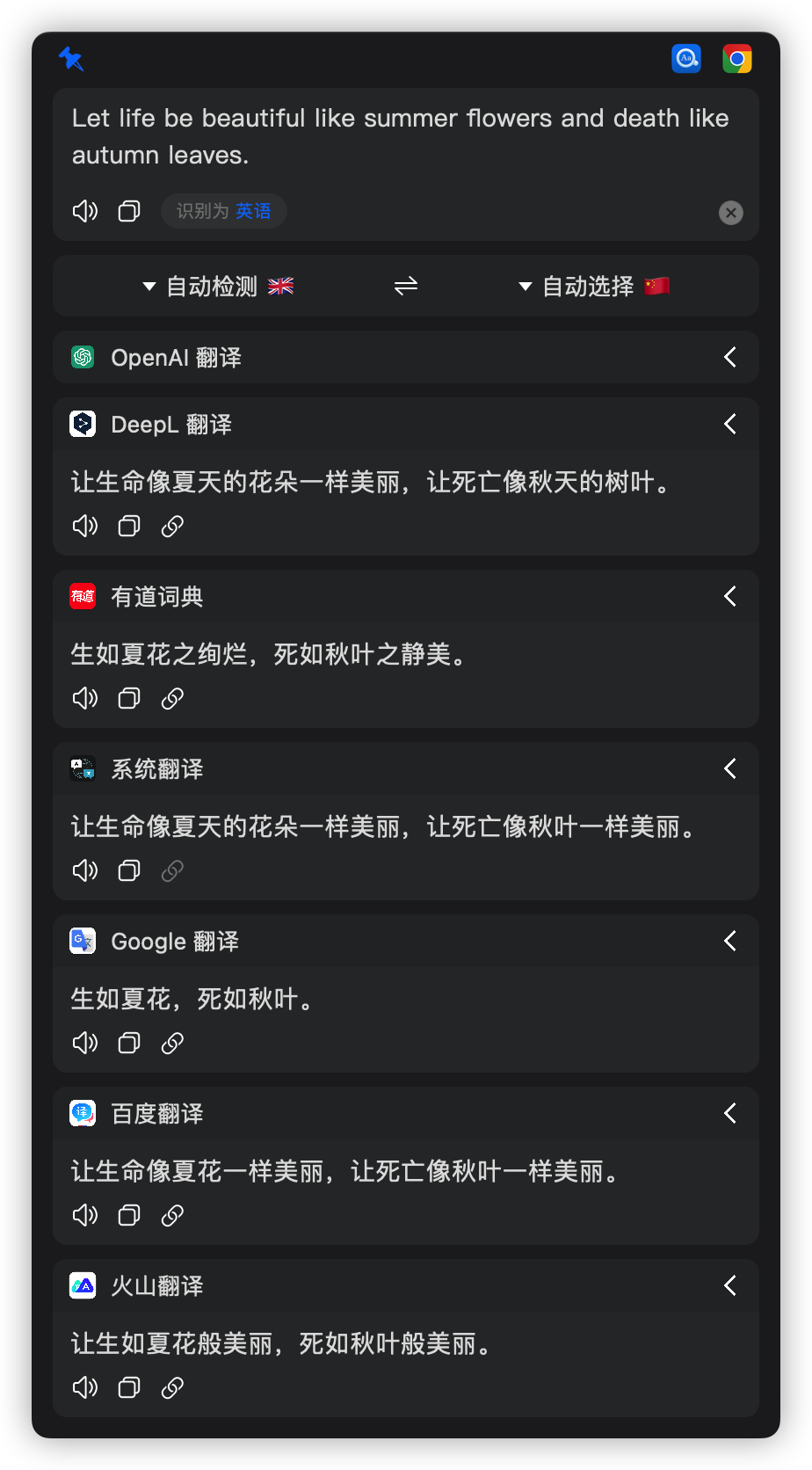
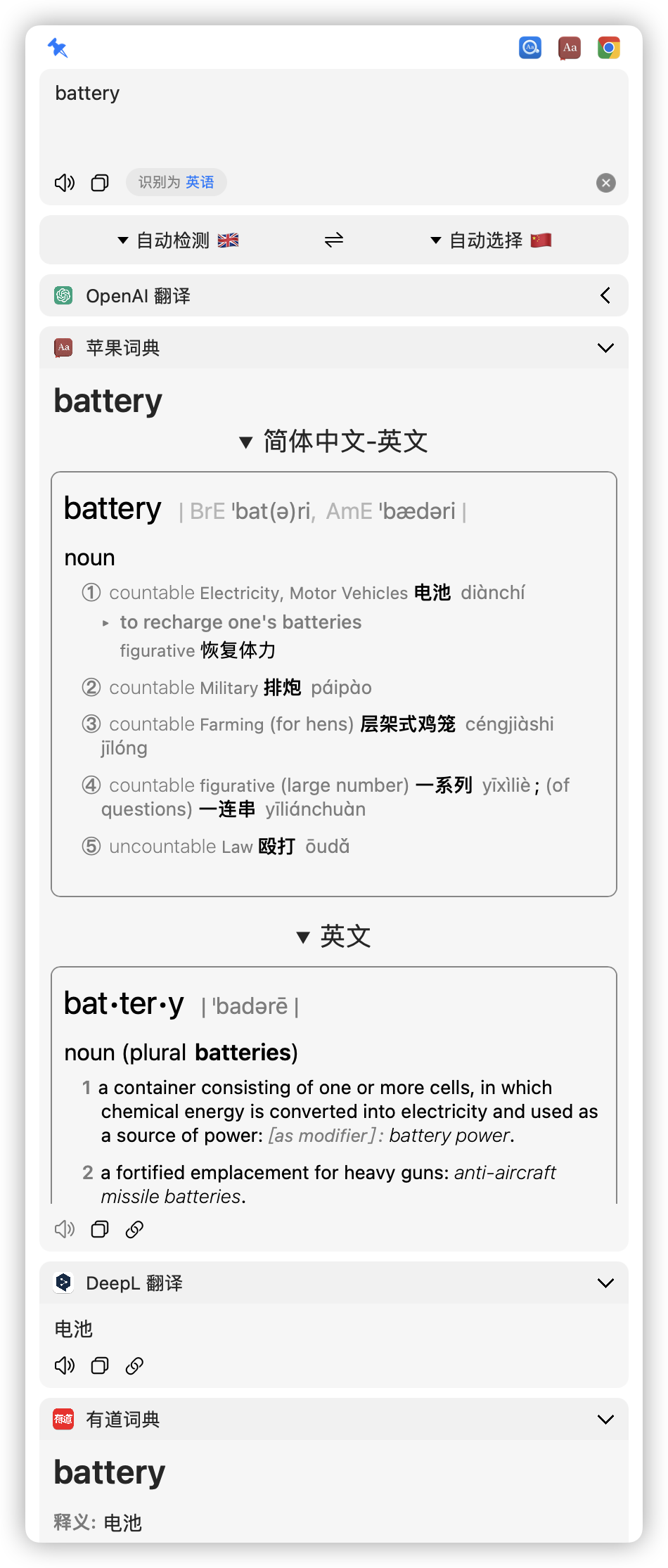
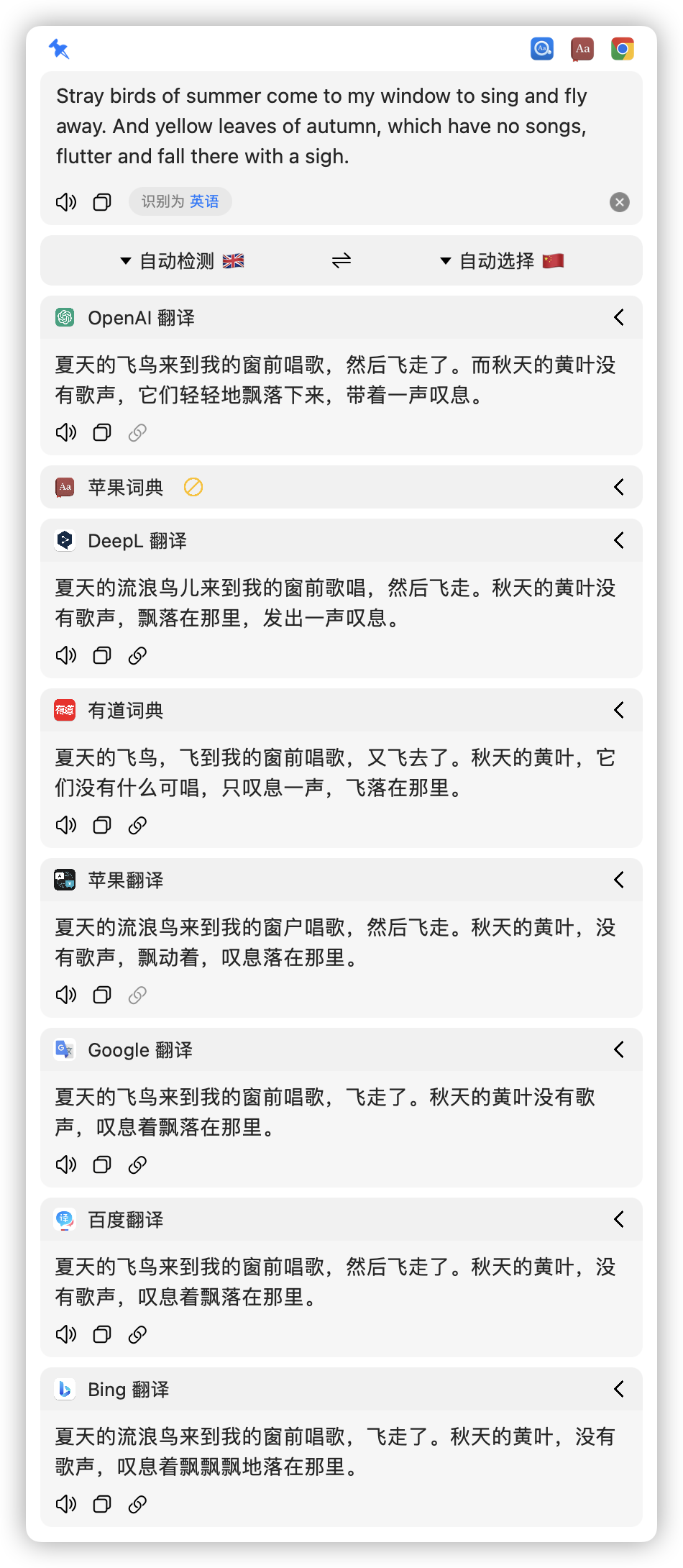
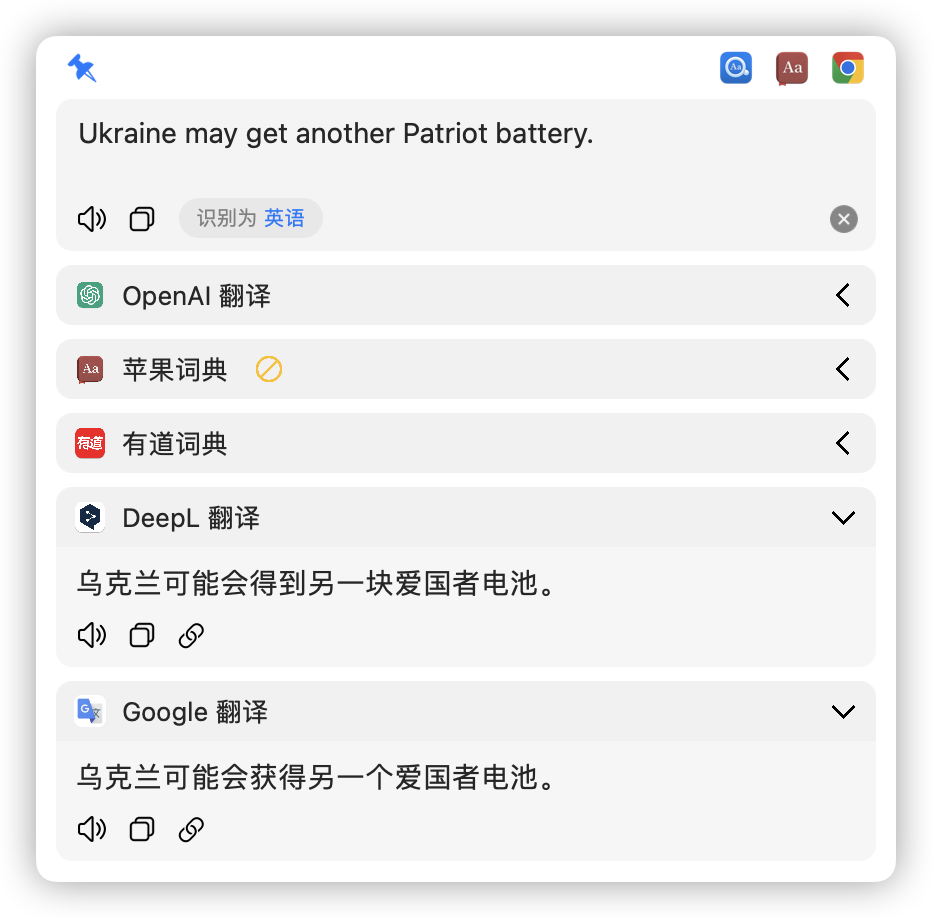
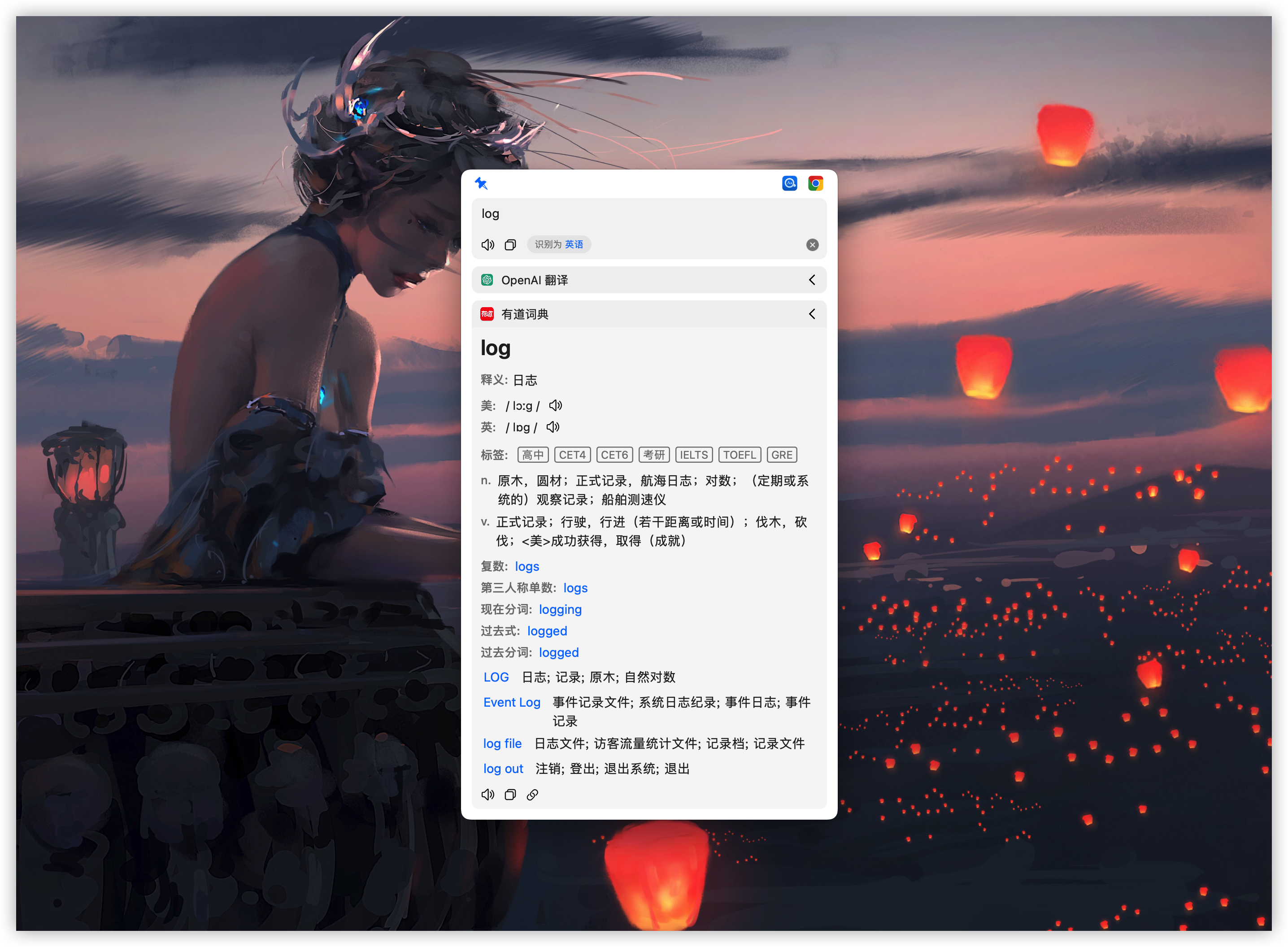
`Easydict` is a concise and easy-to-use translation dictionary macOS App that allows you to easily and elegantly look up words or translate text. Easydict is ready to use out of the box, can automatically recognize the language of the input text, supports input translate, select translate, and OCR screenshot translate, and can query multiple translation services results at the same time. Currently, it supports [Youdao Dictionary](https://www.youdao.com/), [**🍎 Apple System Dictionary**](./docs/How-to-use-macOS-system-dictionary-in-Easydict-en.md), [**🍎 macOS System Translation**](./docs/How-to-use-macOS-system-dictionary-in-Easydict-zh.md), [OpenAI](https://chat.openai.com/), [Gemini](https://gemini.google.com/), [DeepL](https://www.deepl.com/translator), [Google](https://translate.google.com/), [Tencent](https://fanyi.qq.com/), [Bing](https://www.bing.com/translator), [Baidu](https://fanyi.baidu.com/), [Niutrans](https://niutrans.com/), [Lingocloud](https://fanyi.caiyunapp.com/#/), [Ali Translate](https://translate.alibaba.com/) and [Volcano Translation](https://translate.volcengine.com/translate).
## Features
- [x] Out of the box, easily look up words or translate text.
- [x] Automatic recognition of input language and automatic query of target preferred language.
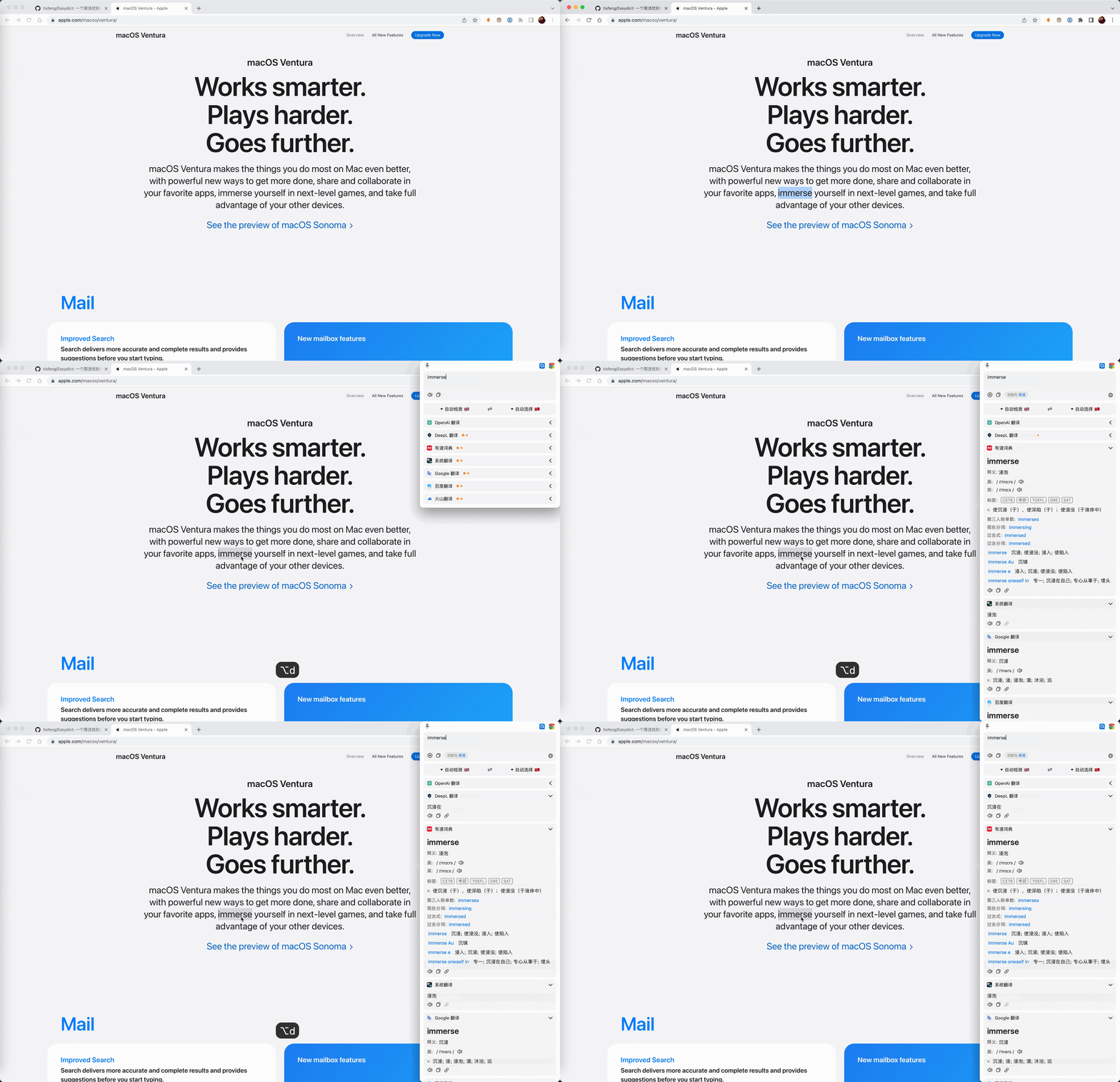
- [x] Auto select translate, automatically display the query icon after word search, and mouse hover to query.
- [x] Support for configuring different services for different window types.
- [x] Support system OCR screenshot translation, Silent Screenshot OCR.
- [x] Support system TTS, along with online services from Bing, Google, Youdao and Baidu Cloud.
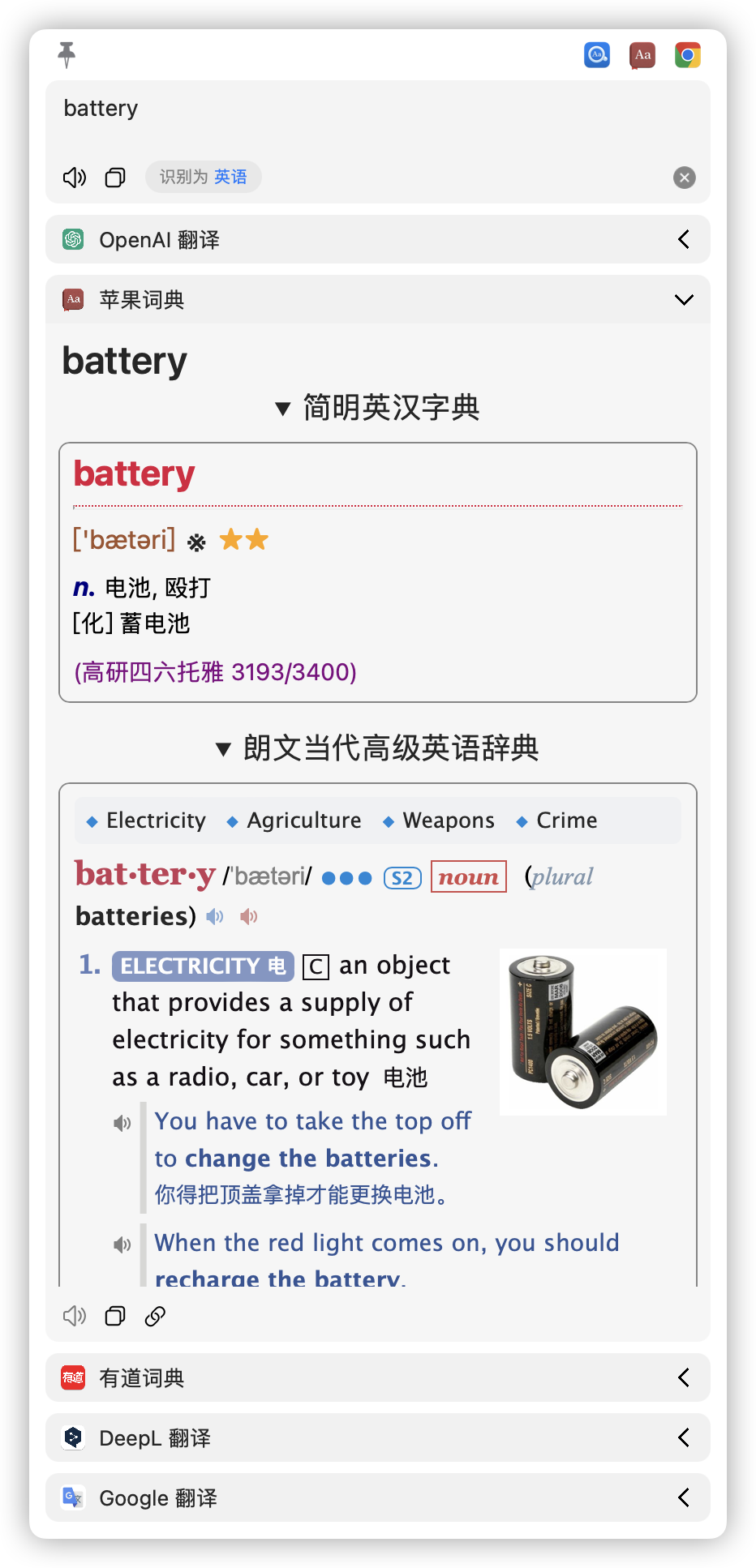
- [x] Support [🍎 Apple System Dictionary](./docs/How-to-use-macOS-system-dictionary-in-Easydict-en.md), support third-party dictionaries with manual mdict dictionaries import functionalities.
- [x] Support macOS system translation. (_Please see [How to use 🍎 macOS system translation in Easydict?](./docs/How-to-use-macOS-system-dictionary-in-Easydict-en.md)_)
- [x] Support Youdao Dictionary, DeepL, OpenAI, Gemini, Google, Tencent, Bing, Baidu, Niutrans, Lingocloud, Ali and Volcano Translate.
- [x] Support for 48 languages.
**If you like this app, please consider giving it a [Star](https://github.com/tisfeng/Easydict) ⭐️, thanks! (^-^)**
## Swift Refactoring Plan
We plan to refactor the project with Swift. If you are interested in this open source project, familiar with Swift/SwiftUI, welcome to join our development team to improve this project together [#194](https://github.com/tisfeng/Easydict/issues/194).
---
## Table of contents
- [Easydict](#easydict)
- [Features](#features)
- [Swift Refactoring Plan](#swift-refactoring-plan)
- [Table of contents](#table-of-contents)
- [Installation](#installation)
- [1. Manual Installation](#1-manual-installation)
- [2. Homebrew](#2-homebrew)
- [Developer Build](#developer-build)
- [Build Environment](#build-environment)
- [Usage](#usage)
- [Select text by Mouse](#select-text-by-mouse)
- [About Permissions](#about-permissions)
- [OCR](#ocr)
- [Language Recognition](#language-recognition)
- [TTS Services](#tts-services)
- [Translation Services](#translation-services)
- [Supported languages](#supported-languages)
- [🍎 Apple System Dictionary](#-apple-system-dictionary)
- [OpenAI Translate](#openai-translate)
- [Configure Personal APIKey](#configure-personal-apikey)
- [OpenAI Query Mode](#openai-query-mode)
- [OpenAI Custom Settings](#openai-custom-settings)
- [Custom OpenAI Translate](#custom-openai-translate)
- [Built-In AI Translate](#built-in-ai-translate)
- [DashScope](#dashscope)
- [Groq](#groq)
- [Google Gemini](#google-gemini)
- [Gemini Translate](#gemini-translate)
- [DeepL Translate](#deepl-translate)
- [Configure AuthKey](#configure-authkey)
- [Configure API endpoint](#configure-api-endpoint)
- [Configure API call method](#configure-api-call-method)
- [Tencent Translate](#tencent-translate)
- [Bing Translate](#bing-translate)
- [Niutrans](#niutrans)
- [Lingocloud](#lingocloud)
- [Ali Translate](#ali-translate)
- [Smart query mode](#smart-query-mode)
- [Query in App](#query-in-app)
- [URL Scheme](#url-scheme)
- [Use with PopClip](#use-with-popclip)
- [Settings](#settings)
- [General](#general)
- [Services](#services)
- [In-App Shortcuts](#in-app-shortcuts)
- [Tips](#tips)
- [Similar Open Source Projects](#similar-open-source-projects)
- [Motivation](#motivation)
- [Contributor Guide](#contributor-guide)
- [Star History](#star-history)
- [Acknowledgements](#acknowledgements)
- [Statement](#statement)
- [Sponsor](#sponsor)
- [Sponsor List](#sponsor-list)
## Installation
You can install it using one of the following two methods. Support macOS 11.0+
### 1. Manual Installation
[Download](https://github.com/tisfeng/Easydict/releases) the latest release of the app.
### 2. Homebrew
Thanks to [BingoKingo](https://github.com/tisfeng/Easydict/issues/1#issuecomment-1445286763) for the initial installation version.
```bash
brew install --cask easydict
```
### Developer Build
If you are a developer, or you are interested in this project, you can also try to build and run it manually. The whole process is very simple, even without knowing macOS development knowledge.
Build Steps
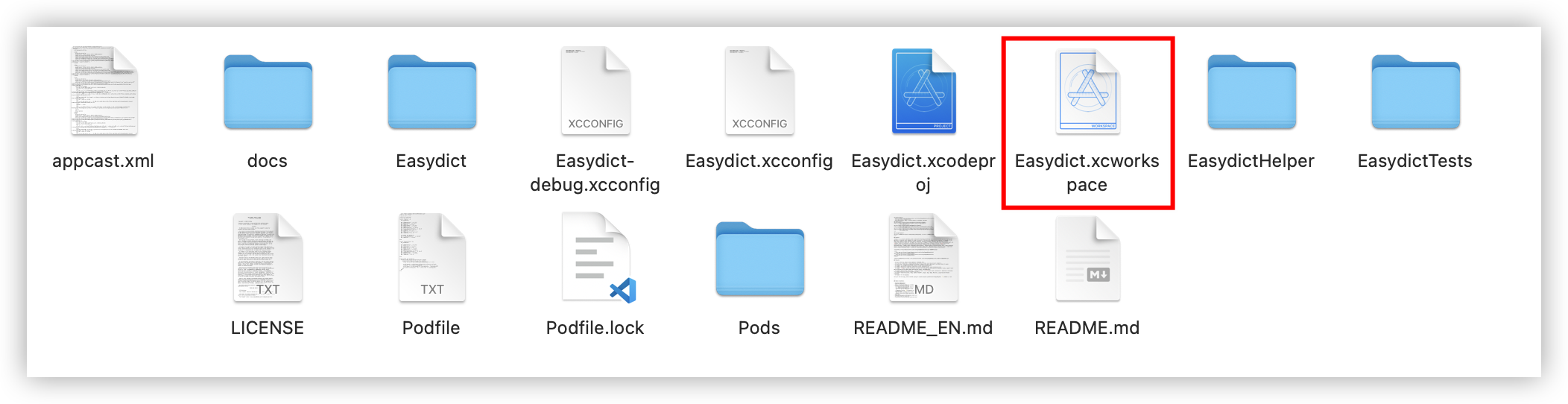
1. Download this Repo, and then open the `Easydict.xcworkspace` file with [Xcode](https://developer.apple.com/xcode/) (⚠️⚠️⚠️ Note that it is not `Easydict.xcodeproj` ⚠️⚠️⚠️).
2. Use `Cmd + R` to compile and run.
The following steps are optional and intended for development collaborators only.
If you often need to debug permission-related features, such as word fetching or OCR, you can choose to run it with your own Apple account, change `DEVELOPMENT_TEAM`` in the `Easydict-debug.xcconfig`` file to your own Apple Team ID (you can find it by logging in to the Apple developer website) and `CODE_SIGN_IDENTITY`` to Apple Development.
Be careful not to commit the `Easydict-debug.xcconfig`` file; you can ignore local changes to this file with the following git command
```bash
git update-index --skip-worktree Easydict-debug.xcconfig
```
#### Build Environment
Xcode 13+, macOS Big Sur 11.3+. To avoid unnecessary problems, it is recommended to use the latest Xcode and macOS version https://github.com/tisfeng/Easydict/issues/79
> [!NOTE]
> Since the latest code uses the String Catalog feature, Xcode 15+ is required to compile.
> If your Xcode version is lower, please use the [xcode-14](https://github.com/tisfeng/Easydict/tree/xcode-14) branch, note that this is a fixed version branch, not maintained.
If the run encounters the following error, try updating CocoaPods and then `pod install`.
> [DT_TOOLCHAIN_DIR cannot be used to evaluate LD_RUNPATH_SEARCH_PATHS, use TOOLCHAIN_DIR instead](https://github.com/CocoaPods/CocoaPods/issues/12012)
---
## Usage
Once Easydict is launched, in addition to the main window (hidden by default), there will be a menu icon, and clicking on the menu option will trigger the corresponding actions, as follows:
| Ways | Description | Preview |
| ------------------------- | -------------------------------------------------------------------------------------------------------------------------------------------- | ---------------------------------------------------------------------------------------------------------------------------------------------- |
| Mouse select translate | The query icon is automatically displayed after the word is selected, and the mouse hovers over it to query | 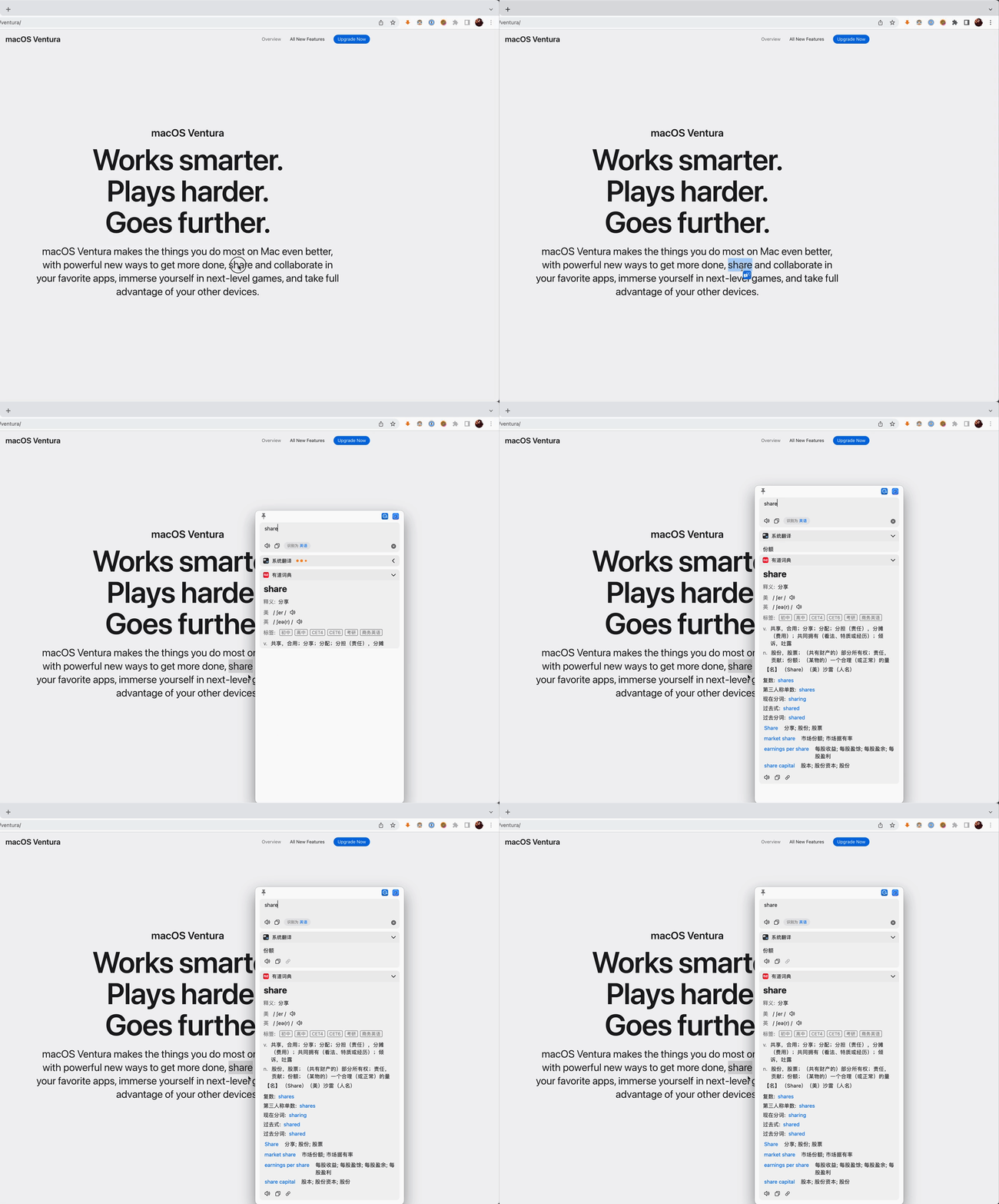 |
| Shortcut select translate | After selecting the text to be translated, press the shortcut key (default `⌥ + D`) | 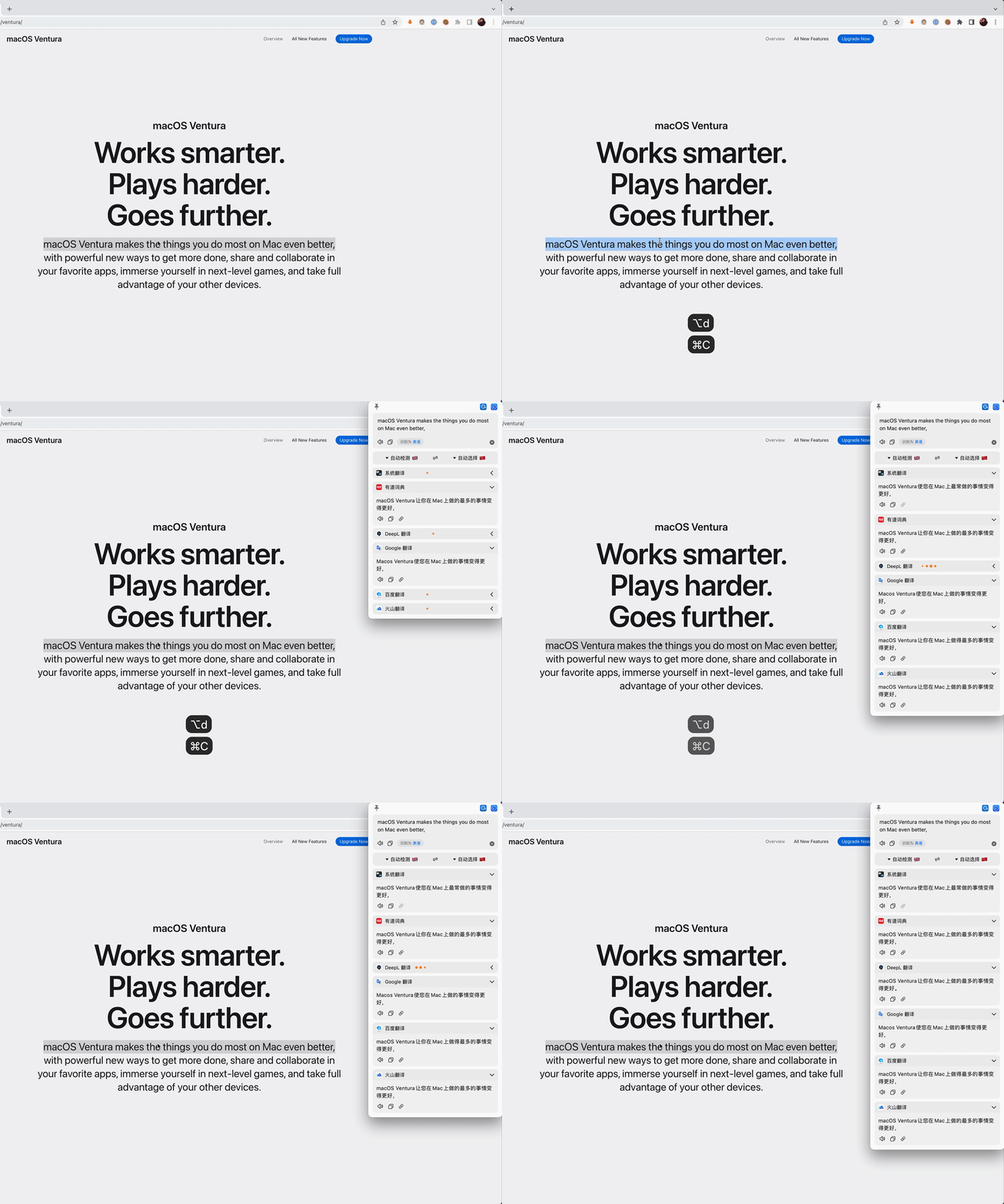 |
| Screenshot translate | Press the screenshot translate shortcut key (default `⌥ + S`) to capture the area to be translated | 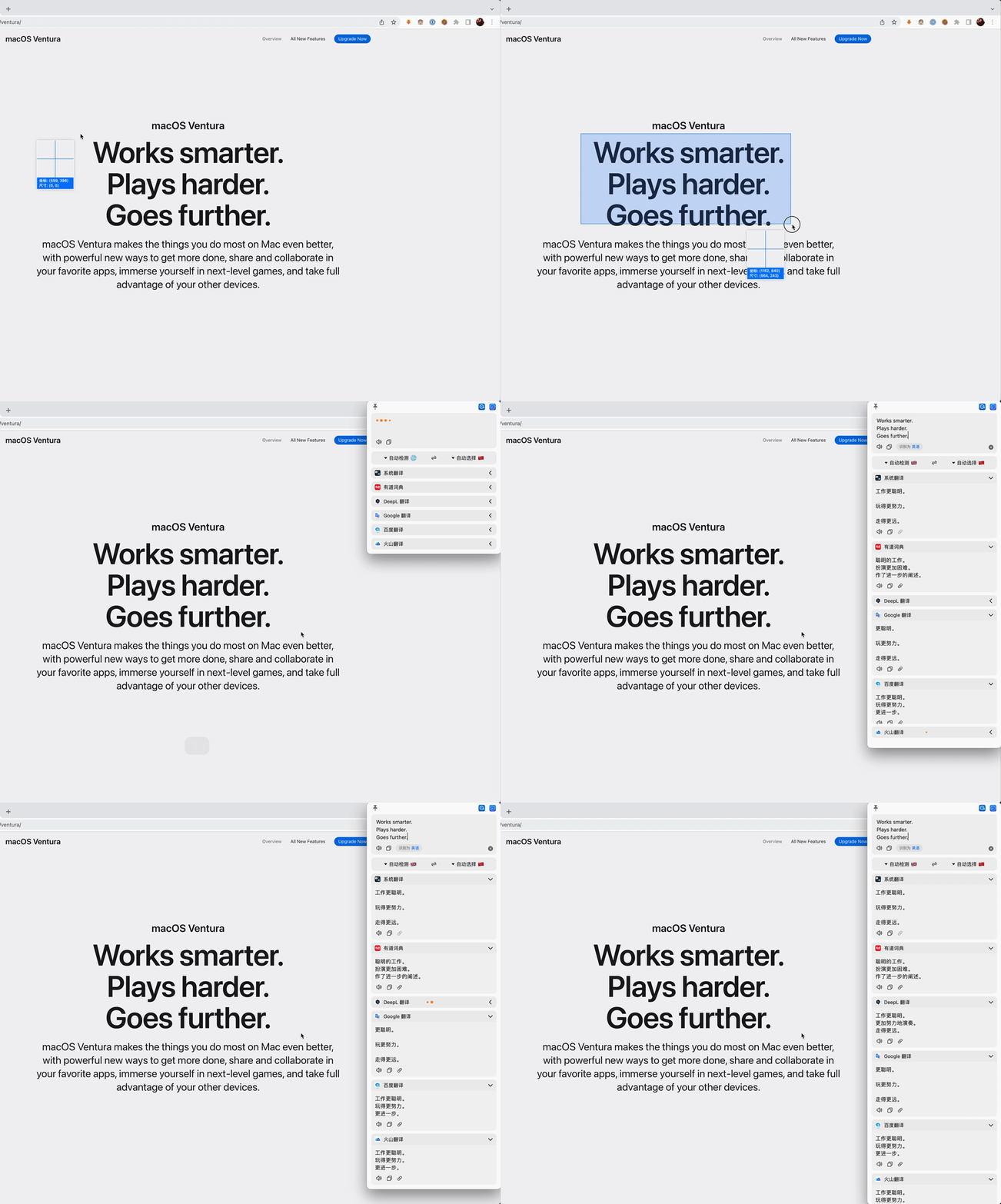 |
| Input translate | Press the input translate shortcut key (default `⌥ + A`, or `⌥ + F`), enter the text to be translated, and `Enter` key to translate | 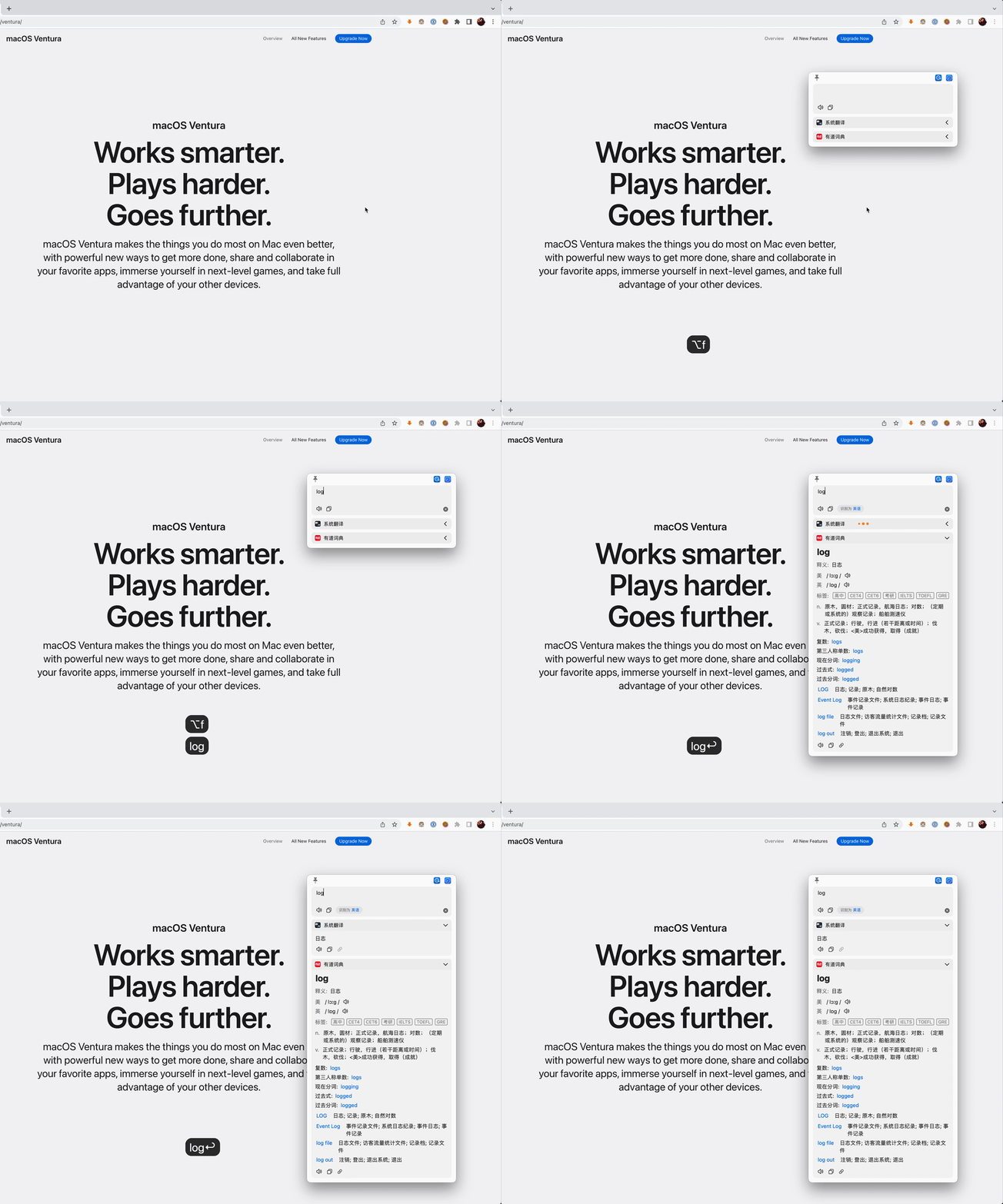 |
| Silent Screenshot OCR | Press the Silent Screenshot shortcut key(default `⌥ + ⇧ + S`)to capture the area, the OCR results will be copied directly to the clipboard |  |
### Select text by Mouse
Currently, multiple mouse quick word selection methods are supported: double-click word selection, mouse drag word selection, triple-click word selection (paragraph) and Shift word selection (multiple paragraphs). In some applications, **mouse drag word selection** and **Shift word selection** may fail, in which case you can switch to other word selection methods.
The shortcut key to select words can work normally in any application. If you encounter an application that cannot select words, you can open an issue to solve it https://github.com/tisfeng/Easydict/issues/84
The flow of the crossword function: Accessibility > AppleScript > simulated shortcuts, giving priority to the secondary function Accessibility fetching, and if Accessibility fetching fails (unauthorized or not supported by the application), if it is a browser application (e.g. Safari, Chrome), it will try to use AppleScript fetching. If the AppleScript fetching still fails, then the final forced fetching is done - simulating the shortcut Cmd+C to fetch the word.
Therefore, it is recommended to turn on the Allow JavaScript in Apple events option in your browser to avoid event blocking on certain web pages, such as those with [forced copyright information](<(https://github.com/tisfeng/Easydict/issues/85)>), and to optimize the word fetching experience.
For Safari users, it is highly recommended that this option be turned on, as Safari does not support Accessibility fetching, and AppleScript fetching is far superior to simulating shortcuts.
### About Permissions
1. `Select Translate` requires the `Auxiliary Accessibility`. The mouse stroke function only triggers the application of auxiliary accessibility permission when it is used for the first time, and the automatic stroke translation function can only be used normally after authorization.
2. For screenshot Translate, you need to enable `Screen Recording` permission. The application will only automatically pop up a permission application dialog box when you use **Screenshot Translation** for the first time. If the authorization fails, you need to turn it on in the system settings manually.
## OCR
Currently, only the system OCR is supported, third-party OCR services will be integrated later.
System OCR supported languages: Simplified Chinese, Traditional Chinese, English, Japanese, Korean, French, Spanish, Portuguese, German, Italian, Russian, Ukrainian.
## Language Recognition
Currently, only the system language recognition is supported, and Baidu and Google language recognition are supported, but considering the speed problem of online recognition and instability (Google also needs to be flipped), the other two recognition services are only used for auxiliary optimization.
The system language recognition is used by default, and after tuning, the accuracy of the system language recognition is already very high, which can meet the needs of most users.
If you still feel that the system language recognition is inaccurate in actual use, you can turn on Baidu language recognition or Google language recognition optimization in the settings, but please note that this may cause the response speed to slow down, and the recognition rate will not be 100% in line with user expectations. If there is a recognition error, you can manually specify the language type.
## TTS Services
Currently support macOS system TTS, Bing, Google, Youdao, and Baidu online TTS service.
- System TTS: The most stable and reliable option, but not very accurate. It is usually used as a fallback option, i.e., the system TTS is used instead of the other TTS when errors occur.
- Bing TTS: Yields optimal results by generating real-time neural network speech synthesis. However, this process is more time-intensive, and the length of the input text directly impacts the duration of generation. Currently, the maximum supported character limit is 2,000 characters, roughly equivalent to a 10-minute generation time.
- Google TTS: Good results with English, and the interface is stable. However, it can only generate upto 200 characters at a time.
- Youdao TTS: The overall performance is commendable with a stable interface, and it excels in the pronunciation of English words. However, the maximum character limit is capped at 600 characters.
- Baidu TTS: English sentences are well pronounced with a distinctive accent, but can only generate up to about 1,000 characters.
By default, the application uses Youdao TTS, but users have the option to select their preferred TTS service in the settings.
Due to its impressive performance with English words, Youdao TTS is the recommended choice for such content, while the default TTS service remains in use for other languages.
It's worth noting that, apart from the system TTS, all other TTS services are unofficial interfaces and may experience instabilities from time to time
## Translation Services
Currently supports YouDao Dictionary, 🍎 Apple System Dictionary, 🍎 Apple System Translator, DeepL, Google, Bing, Baidu and Volcano Translator.
> [!NOTE]
> Since the Chinese version of Google Translate is currently unavailable, you can only use the international version, so you need to use a proxy to use Google Translate.
### Supported languages
### 🍎 Apple System Dictionary
Easydict seamlessly integrates with the dictionaries available in the macOS Dictionary App, including popular options like the Oxford English-Chinese-Chinese-English Dictionary (Simplified Chinese-English) and the Modern Chinese Standard Dictionary (Simplified Chinese). To use these dictionaries, simply enable them through the Dictionary App settings page.
Furthermore, Apple Dictionary offers support for custom dictionaries, allowing you to import third-party options such as the Concise English-Chinese Dictionary, Longman Dictionary of Contemporary Advanced English, and more. These can be added to your system by importing dictionaries in the .dictionary format.
For detailed information, please see [How to use macOS system dictionary in Easydict](./docs/How-to-use-macOS-system-dictionary-in-Easydict-en.md)
### OpenAI Translate
Version 1.3.0 starts to support OpenAI translation, which requires an OpenAI API key.
If you don't have your own OpenAI APIKey, you can use some open source projects to convert third-party LLM interfaces to standard OpenAI interfaces, so that you can use them directly in `Easydict`.
For example, [one-api](https://github.com/songquanpeng/one-api), one-api is a good OpenAI interface management open source project, supports many LLM interfaces, including Azure, Anthropic Claude, Google Gemini, ChatGLM, Baidu Wenwen, and so on. ChatGLM, Baidu Wenxin Yiyin, Xunfei Starfire Cognition, Ali Tongyi Thousand Questions, 360 Intelligent Brain, Tencent Mixed Meta, Moonshot AI, Groq, Zero-One Everything, Step Star, DeepSeek, Cohere , etc., can be used for the secondary distribution of the management key, only a single executable file, has been packaged with a good Docker image, one-key deployment, out-of-the-box .
> [!IMPORTANT]
> [2.6.0](https://github.com/tisfeng/Easydict/releases) version implements a new SwiftUI settings page (macOS 13+ support), which supports configuring the service API key in a GUI way, other system verions need to be configured using commands in Easydict's input box.
> [!TIP]
> If your computer hardware supports it, it is recommended to upgrade to the latest macOS system to enjoy a better user experience.

#### Configure Personal APIKey
```bash
easydict://writeKeyValue?EZOpenAIAPIKey=sk-xxx
```
Lookup for APIKey (similar to other keys), if the query succeeds, the result will be written to the clipboard.
```bash
easydict://readValueOfKey?EZOpenAIAPIKey
```
#### OpenAI Query Mode
Currently, OpenAI translation supports three query modes: word lookup, sentence translation, and long-text translation. They are all enabled by default, while words and sentences can be disabled.
Considering the token cost associated with OpenAI, a default 'Close' option has been implemented. After executing the following command, OpenAI will automatically stop the queries by default, and it will only be queried when the user manually clicks the 'Expand' button.
```bash
easydict://writeKeyValue?EZOpenAIServiceUsageStatusKey=1
```
```bash
// Disable word lookup
easydict://writeKeyValue?EZOpenAIDictionaryKey=0
// Disable sentence analysis
easydict://writeKeyValue?EZOpenAISentenceKey=0
```
A quick tip: If you only want to exclude occasional sentence analysis without turning off the Sentence mode, simply append a tilde (~) after `[Sentence]`. This will convert it into the Translation mode.
#### OpenAI Custom Settings
Support custom domains and models
```bash
// set custom API URL, https://api.openai.com/v1/chat/completions
easydict://writeKeyValue?EZOpenAIEndPointKey=xxx
// set default model, gpt-3.5-turbo
easydict://writeKeyValue?EZOpenAIModelKey=xxx
// set available modes, gpt-3.5-turbo, gpt-4-turbo
easydict://writeKeyValue?EZOpenAIAvailableModelsKey=xxx
```
Since the official OpenAI interface has restrictions on user IPs, if you need a reverse proxy, you can refer to this project [cloudflare-reverse-proxy](https://github.com/gaboolic/cloudflare-reverse-proxy)
### Custom OpenAI Translate
The supported configuration items are the same as OpenAI, just replace OpenA with CustomOpenAI.
```bash
easydict://writeKeyValue?EZCustomOpenAIAPIKey=sk-xxx
easydict://writeKeyValue?EZCustomOpenAIEndPointKey=xxx
easydict://writeKeyValue?EZCustomOpenAIModelKey=xxx
easydict://writeKeyValue?EZCustomOpenAIServiceUsageStatusKey=xxx
```
### Built-In AI Translate
Currently, some LLM service vendors provide free AI models with restrictions, such as Ali's Lingjian modeling service [DashScope](https://dashscope.console.aliyun.com/), [Groq](https://console.groq.com), [Google Gemini](https://aistudio.google.com/app/apikey), and so on.
To make it easier for new users to get a taste of using these big model AI translations, we have added a built-in AI translation service that supports the following service models:
#### [DashScope](https://dashscope.console.aliyun.com/)
> Tongyi Thousand Questions open source series, open DashScope and get a total of 1,000,000 tokens!
> The qwen1.5-32b-chat model is currently available for free for a limited time.
- qwen1.5-32b-chat
- qwen-turbo
- baichuan2-13b-chat-v1
- deepseek-7b-chat
- internlm-7b-chat
#### [Groq](https://console.groq.com)
- llama3-70b-8192
- mixtral-8x7b-32768
#### [Google Gemini](https://aistudio.google.com/app/apikey)
- gemini-pro
However, please note that the above built-in models have some limitations (mainly on the free amount), we do not guarantee that they can be used stably all the time, and we recommend users to use [one-api](https://github.com/songquanpeng/one-api) to build their own big model service.

### Gemini Translate ##
[Gemini Translation](https://gemini.google.com/) requires an API key, which can be obtained for free on the official website [Console](https://makersuite.google.com/app/apikey).
```bash
easydict://writeKeyValue?EZGeminiAPIKey=xxx
```
### DeepL Translate
DeepL free version web API has a frequency limit for single IP, frequent use will trigger 429 too many requests error, so version 1.3.0 adds support for DeepL official API, but the interface has not been written yet, and needs to be enabled through command.
If you have DeepL AuthKey, it is recommended to use personal AuthKey, so as to avoid frequency limits and improve user experience. If not, you can use the way of switching proxy IP to avoid 429 error.
> [!NOTE]
> Using a new proxy IP is a generic solution that works for other frequency-limited services.
#### Configure AuthKey
Enter the following code in the input box, xxx is your DeepL AuthKey, and then Enter
```bash
easydict://writeKeyValue?EZDeepLAuthKey=xxx
```
#### Configure API endpoint
If you don't have your own AuthKey and need to use DeepL translation a lot, you can consider deploying your own interface service that supports DeepL, or using a third-party service that supports DeepL.
In this case, you need to set a custom DeepL interface address, where the value of EZDeepLTranslateEndPointKey should be the complete request URL, for example, the DeepL official interface is https://api-free.deepl.com/v2/translate. If the custom interface requires AuthKey, the configuration method is the same as before, and the interface parameters are consistent with the DeepL official.
The way to customize the DeepL API URL is equivalent to the DeepL official AuthKey API form in Easydict.
Easydict supports the [DeepLX](https://github.com/OwO-Network/DeepLX) API, see [#464](https://github.com/tisfeng/Easydict/issues/464) for details.
```bash
easydict://writeKeyValue?EZDeepLTranslateEndPointKey=xxx
```
#### Configure API call method
1. The web version API is used by default, and the personal AuthKey will be used when the web version API fails (if any)
```bash
easydict://writeKeyValue?EZDeepLTranslationAPIKey=0
```
2. Use personal AuthKey first, and use web version API when it fails. If you use DeepL frequently, it is recommended to use this method, which can reduce one failed request and improve response speed.
```bash
easydict://writeKeyValue?EZDeepLTranslationAPIKey=1
```
3. Only use personal AuthKey
```bash
easydict://writeKeyValue?EZDeepLTranslationAPIKey=2
```
### Tencent Translate
[Tencent Translate](https://fanyi.qq.com/) requires an APIKey, for ease of use, we have built-in a key, this key has a limit on the amount, not guaranteed to be available all the time.
It is recommended to use your own APIKey, each registered user of Tencent Translate is given 5 million characters of traffic per month, which is enough for daily use.
```bash
// xxx is the SecretId of Tencent Translate
easydict://writeKeyValue?EZTencentSecretId=xxx
// xxx is the SecretKey of Tencent Translate
easydict://writeKeyValue?EZTencentSecretKey=xxx
```
### Bing Translate
At present, Bing Translator uses a web interface. When encountering a 429 error due to triggering rate limits, you can extend the usage by manually setting request cookies, aside from switching proxies. The exact duration of the time extension is currently unclear.
The specific steps are, to use the browser to log in [Bing Translator](https://www.bing.com/translator), then get the cookie in the console by running the following command.
```js
cookieStore.get("MUID").then(result => console.log(encodeURIComponent("MUID=" +result.value)));
```
Finally, use the command to write the cookie in Easydict
```bash
// xxx is the obtained cookie
easydict://writeKeyValue?EZBingCookieKey=xxx
```
> [!NOTE]
> Bing TTS also uses a web API, which is also easy to trigger interface restrictions and does not report errors, so if you set Bing to the default TTS, it is recommended to set cookies.
### Niutrans
[Niutrans](https://niutrans.com/) requires an API key, for ease of use, we have built-in a key, this key has a limit on the amount, not guaranteed to be available all the time.
It is recommended to use your own API key, each registered user of Niutrans is given 200,000 characters of traffic per day.
```bash
// xxx is the APIKey of Niutrans
easydict://writeKeyValue?EZNiuTransAPIKey=xxx
```
### Lingocloud
[Lingocloud](https://fanyi.caiyunapp.com/#/) needs an Token, for ease of use, we have built-in a token, this token has a limit on the amount, not guaranteed to be available all the time.
It is recommended to use your own Token, each registered user of Lingocloud is given 100,000 characters of traffic per day.
```bash
// xxx is the Token of Lingocloud
easydict://writeKeyValue?EZCaiyunToken=xxx
```
### Ali Translate
[Ali Translate](https://translate.alibaba.com/) requires an API key, for ease of use, we have built-in a key, this key has a limit on the amount, not guaranteed to be available all the time.
It is recommended to use your own API key, each registered user of Ali Translate is given 100,000 characters of traffic per day.
```bash
easydict://writeKeyValue?EZAliAccessKeyId=xxx
easydict://writeKeyValue?EZAliAccessKeySecret=xxx
```
## Smart query mode
Currently, there are two main types of lookup services: vocabulary lookup (e.g., Apple Dictionary) and translating text (e.g., DeepL), and there are also some services (e.g., Yudao and Google) that support both vocabulary lookup and translating text.
```objc
typedef NS_OPTIONS(NSUInteger, EZQueryTextType) {
EZQueryTextTypeNone = 0, // 0
EZQueryTextTypeTranslation = 1 << 0, // 01 = 1
EZQueryTextTypeDictionary = 1 << 1, // 10 = 2
EZQueryTextTypeSentence = 1 << 2, // 100 = 4
};
```
Easydict can automatically enable the appropriate query service based on the content of the query text.
Specifically, under smart query mode, when looking up for vocabularies, only services that support [Words lookup] will be invoked; when translating text, only services that support [Text Translation] will be enabled.
For vocabularies, services that support vocabularies lookup work significantly better than translations, while translating text with vocabularies lookups enabled.
By default, all translation services support vocabularies lookup (vocabularies are also a kind of text), users can adjust it manually. For example, to set Google to translate text only, just use the following command to change the property to `translation | sentence`.
```bash
easydict://writeKeyValue?Google-IntelligentQueryTextType=5
```
Similarly, for some services that support looking up vocabulary and translating text at the same time, such as Youdao Dictionary, you can set its query mode to look up only vocabulary by setting the type to `dictionary`.
```bash
easydict://writeKeyValue?Youdao-IntelligentQueryTextType=2
```
By default, all Windows are not enabled for smart query mode, users can enable this feature manually:
```bash
easydict://writeKeyValue?IntelligentQueryMode-window1=1
```
window1 represents the mini window, while window2 represents hover window, value 0 represents disabled, while 1 represents enabled.
> [!NOTE]
> Smart query mode only indicates whether this query service is enabled or not, and the user can manually click on the arrow to the right in the service view to expand the query at any time.
### Query in App
Easydict in-app lookup is supported. In the input box or translation result, if you encounter unfamiliar words, you can call out the menu by right-clicking with heavy pressure and selecting the first "In-app lookup".
## URL Scheme
Easydict supports fast lookup for URL scheme: `easydict://query?text=xxx`, such as `easydict://query?text=good`.
If the query content xxx contains special characters, URL encoding is needed, such as `easydict://query?text=good%20girl`.
> [!WARNING]
> The old version of easydict://xxx may cause problems in some scenarios, so it is recommended to use the complete URL Scheme:
> easydict://query?text=xxx
## Use with PopClip
You need to install [PopClip](https://pilotmoon.com/popclip/) first, then select the following code block, `PopClip` will show "Install Extension Easydict", just click it.
```applescript
-- #popclip
-- name: Easydict
-- icon: iconify:ri:translate
-- language: applescript
tell application "Easydict"
launch
open location "easydict://query?text={popclip text}"
end tell
```
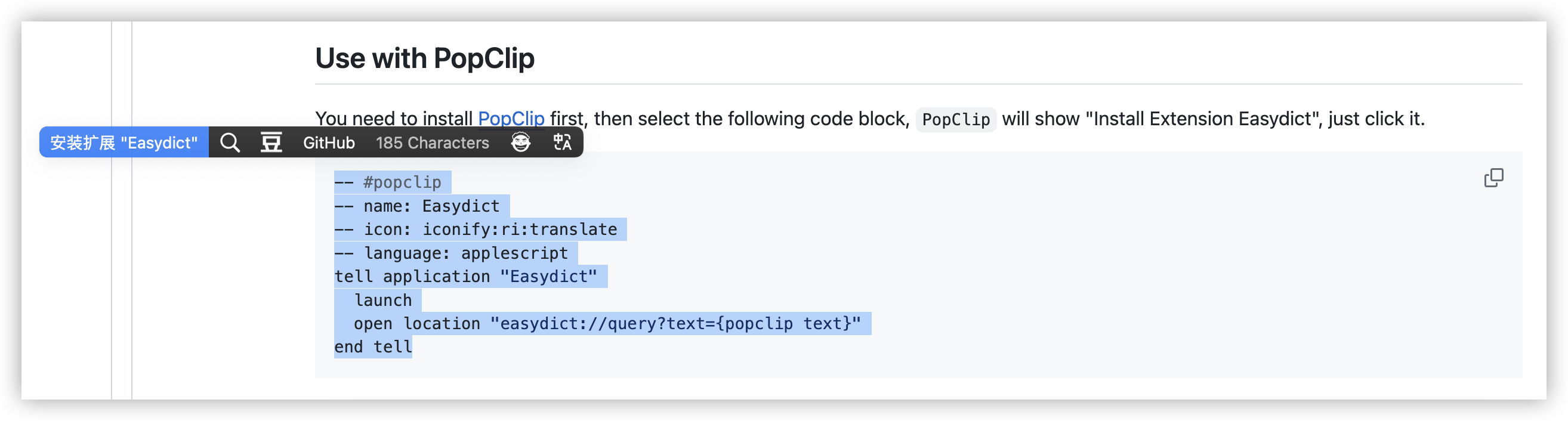
> Refer: https://www.popclip.app/dev/applescript-actions
## Settings
The settings page provides some preference setting modifications, such as automatically playing word pronunciation after turning on a query, modifying translation shortcut keys, turning on and off services, or adjusting the order of services, etc.
### General
### Services
Easydict has 3 types of Windows and you can set different services for each of them.
- Mini window: displayed when the mouse automatically picks up words.
- Floating window: displayed when shortcut keys are used to fetch words and screenshot translation.
- Main window: hidden by default, you can turn it on in the settings and show it when the program starts. (The main window function will be enhanced later)
### In-App Shortcuts
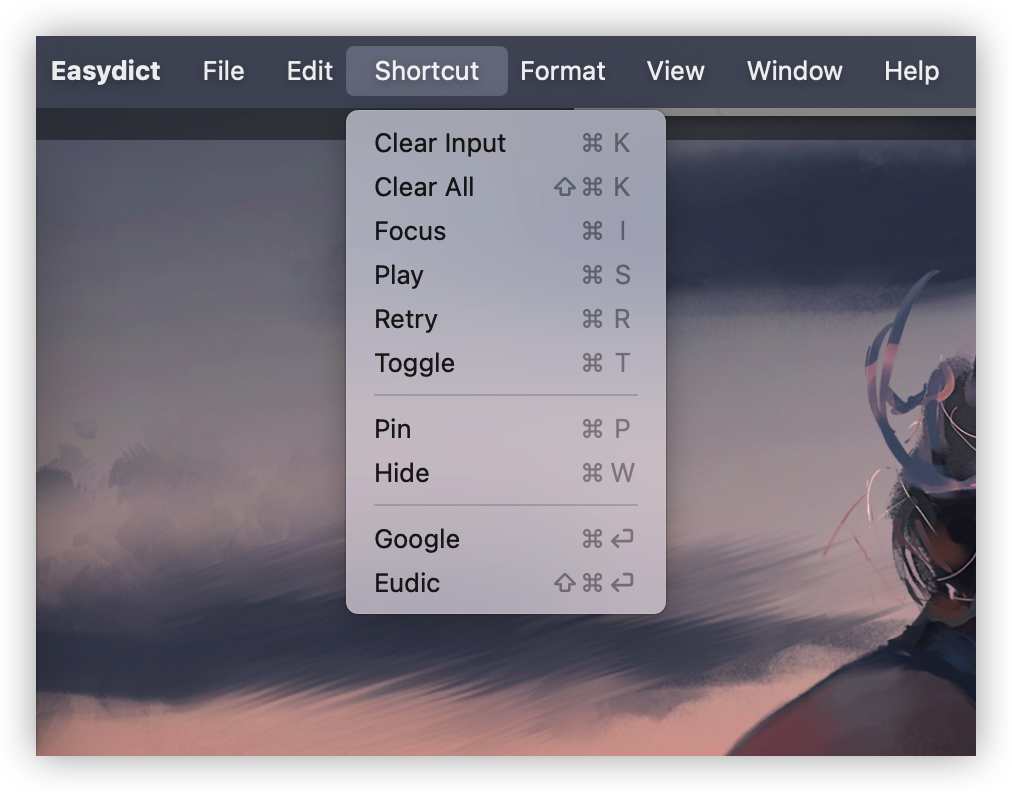
Easydict has some in-app shortcuts to help you use it more efficiently.
Unlike the translation shortcut keys that are globally effective, the following shortcuts only take effect when the Easydict window is in the foreground.
- `Enter`: After entering the text, press Enter to start the query.
- `Shift + Enter`: Enter a new line.
- `Cmd + ,`: Open the settings page.
- `Cmd + Q`: Quit the app.
- `Cmd + K`: Clear the input text.
- `Cmd + Shift + K`: Clear the input box and query results, the same as clicking the clear button in the lower right corner of the input text.
- `Cmd + I`: Focus on the input text.
- `Cmd + Shift + C`: Copy query text.
- `Cmd + S`: Play the pronunciation of the query text.
- `Cmd + R`: Query again.
- `Cmd + T`: Toggle translation language.
- `Cmd + P`: Pin the window.
- `Cmd + W`: Close the window.
- `Cmd + Enter`: By default, the Google search engine is opened, and the content to be searched is the input text, which is equivalent to manually clicking the browser search icon in the upper right corner.
- `Cmd + Shift + Enter`: If the Eudic App is installed on the computer, an Eudic icon will be displayed to the left of the Google icon, and the action is to open the Eudic App to query.
## Tips
As long as the query window is activated, you can open the settings page by shortcut key `Cmd + ,`. If you hide the menu bar icon, you can reopen it in this way.
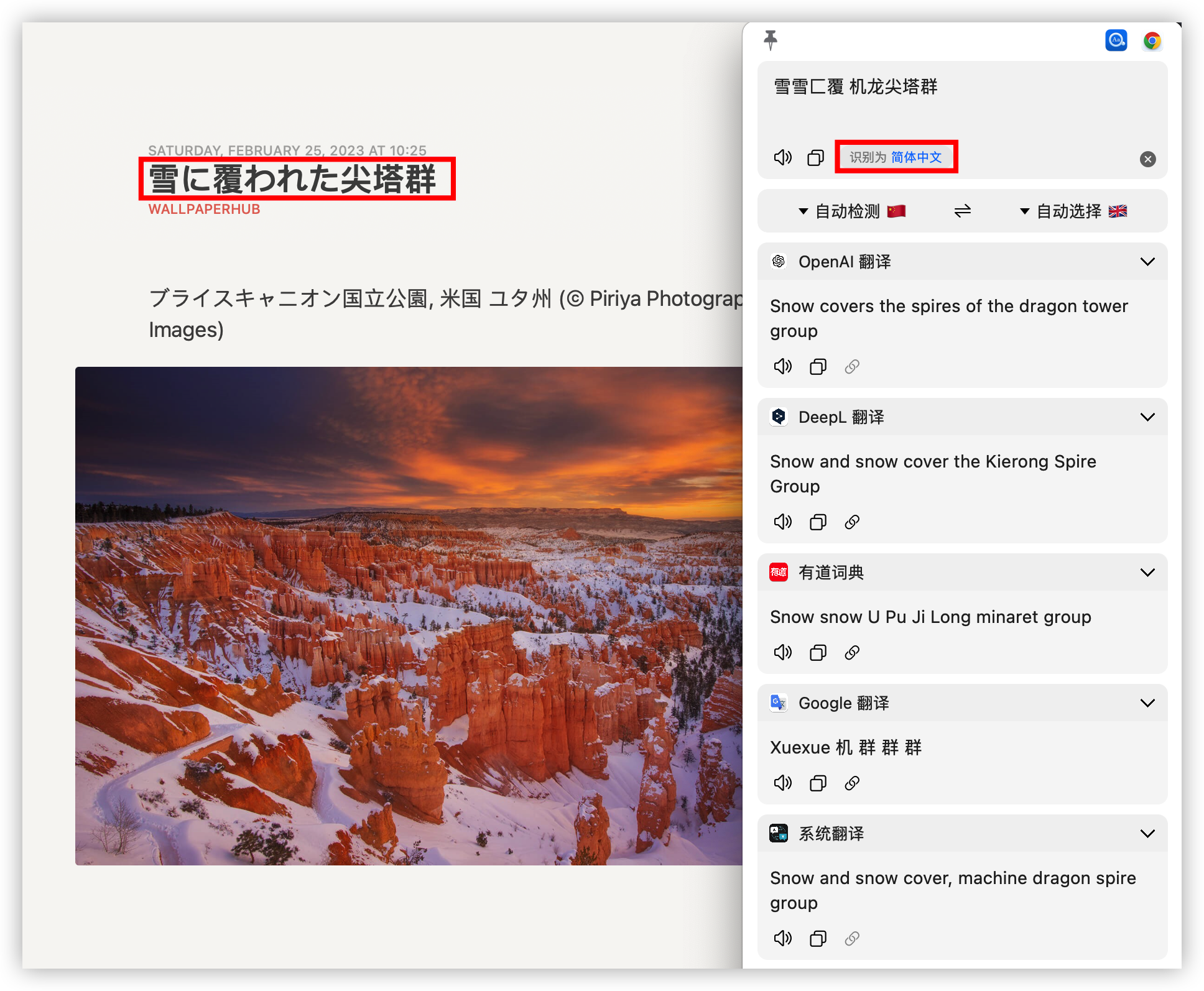
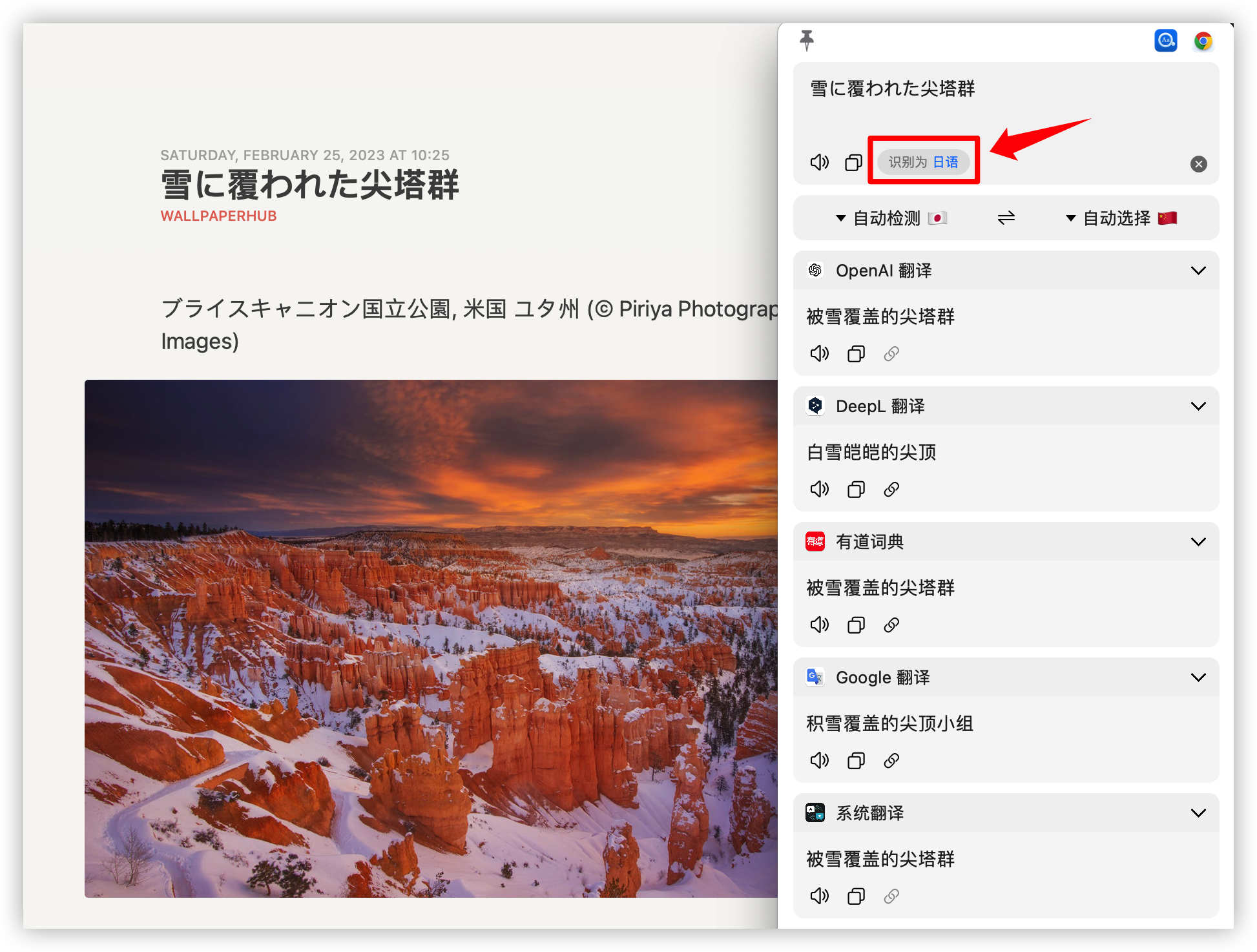
If you find that the OCR result is incorrect, you can correct the OCR result by clicking the "Detected xxx" button to specify the recognition language.
## Similar Open Source Projects
- [immersive-translate](https://github.com/immersive-translate/immersive-translate): A nice Immersive Dual Web Page Translation Extension.
- [pot-desktop](https://github.com/pot-app/pot-desktop) : A cross-platform software for text translation and recognize.
- [ext-saladict](https://github.com/crimx/ext-saladict): A browser extension for looking up words and translating.
- [openai-translator](https://github.com/yetone/openai-translator): Browser extension and cross-platform desktop application for translation based on ChatGPT API.
- [Raycast-Easydict](https://github.com/tisfeng/Raycast-Easydict): My other open source project, a Raycast extension version of Easydict.
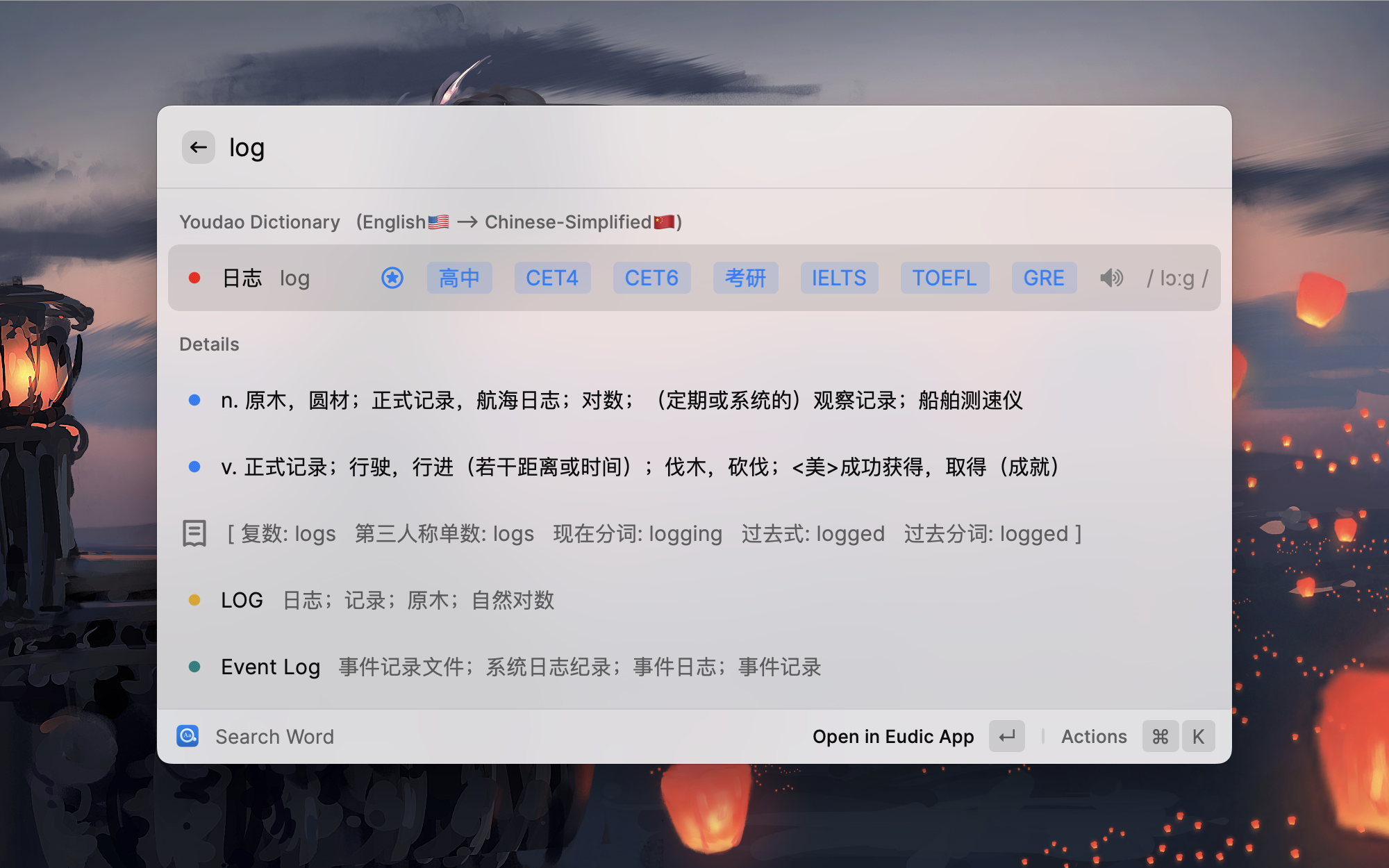
## Motivation
Looking up words and translating text is a very useful function in daily life. I have used many translation dictionaries, but I was not satisfied until I met Bob. [`Bob`](https://bobtranslate.com/) is an excellent translation software, but it is not open source and no longer provides free application updates since it hit the Apple Store.
As a developer and beneficiary of a lot of open source software, I think that there should be a free open source version of [Bob](https://github.com/ripperhe/Bob) in the world, so I made [Easydict](https://github.com/tisfeng/Easydict).
Now I use Easydict a lot every day, I like it very much, and I hope more people can know it and use it.
Open source makes the world better.
## Contributor Guide
If you are interested in this project, we welcome you to contribute to the project, and we will provide help as much as possible.
Currently, the project has two main branches, dev and main. The dev branch code is usually the latest, and may contain some features that are under development. The main branch code is stable and will be merged with the dev branch code regularly.
In addition, we plan to migrate the project from objc to Swift, and gradually use Swift to write new feature modules in the future, see https://github.com/tisfeng/Easydict/issues/194
If you think there is room for improvement in the project, or if you have new ideas for features, please submit a PR:
If the PR is a bug fix or feature implementation for an existing issue, please submit it to the dev branch.
If the PR is about a new feature or involves major changes to the UI, it is recommended to open an issue for discussion first to avoid duplicate or conflicting features.
## Star History
## Acknowledgements
- This project was inspired by [saladict](https://github.com/crimx/ext-saladict) and [Bob](https://github.com/ripperhe/Bob), and the initial version was made based on [Bob (GPL-3.0)](https://github.com/1xiaocainiao/Bob). [Easydict](https://github.com/tisfeng/Easydict) has made many improvements and optimizations on the original project, and many features and UI are referenced from Bob.
- Screenshot feature is based on [isee15](https://github.com/isee15) 's [Capture-Screen-For-Multi-Screens-On-Mac](https://github.com/isee15/Capture-Screen-For-Multi-Screens-On-Mac), and optimized on this project.
- Select text feature is referenced from [PopClip](https://pilotmoon.com/popclip/).
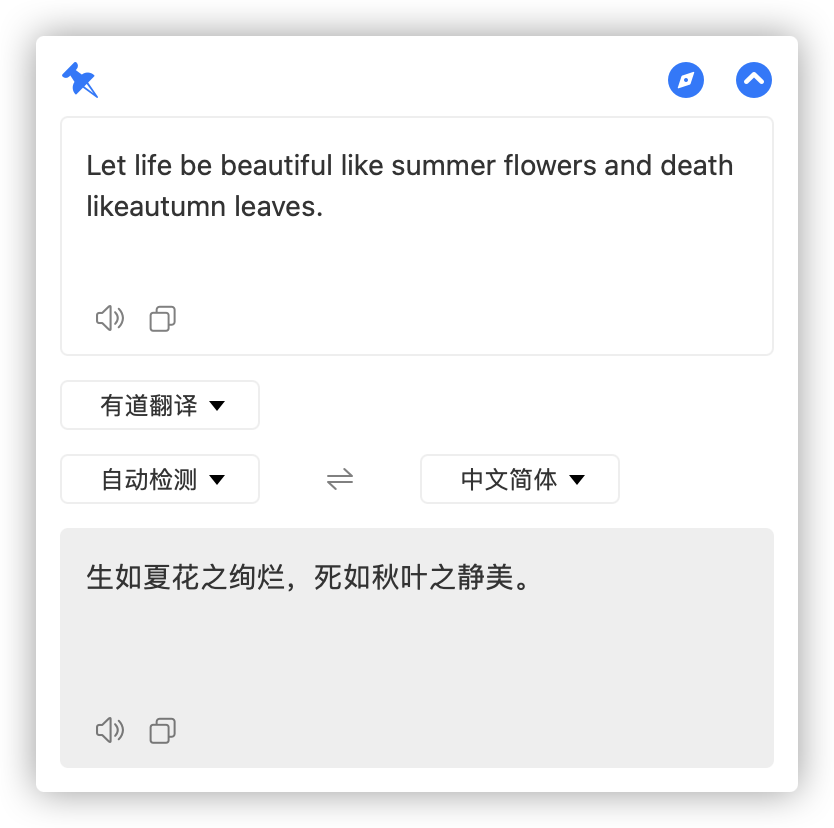
Bob Initial Version
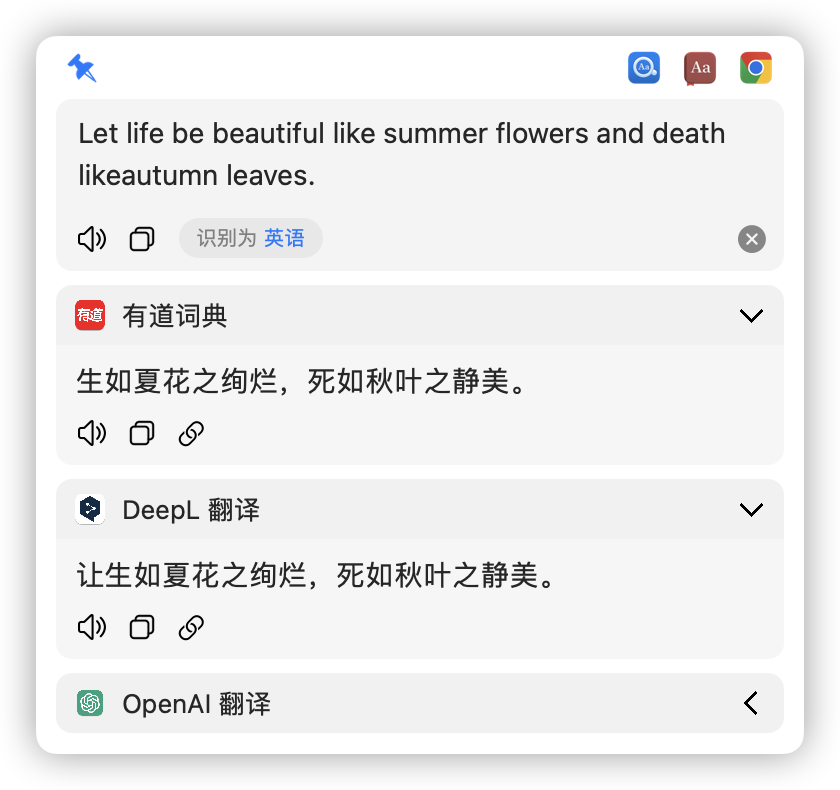
Easydict New Version
## Statement
Easydict is licensed under the [GPL-3.0](https://github.com/tisfeng/Easydict/blob/main/LICENSE) open source license, which is for learning and communication only. Anyone can get this product and source code for free. If you believe that your legal rights have been violated, please contact the [author](https://github.com/tisfeng) immediately. You can use the source code freely, but you must attach the corresponding license and copyright.
## Sponsor
Easydict is a free and open source project, currently mainly developed and maintained by the author. If you like this project, and find it helpful, you can consider sponsoring this project to support it, so that it can go further.
If sponsorship is enough to cover Apple's $99 annual fee, I will sign up for a developer account to solve the app [signature problem](https://github.com/tisfeng/Easydict/issues/2) and make Easydict more accessible to more people.
### Sponsor List
If you don't want your username to be displayed in the list, please choose anonymous. Thank you for your support.
Sponsor List