# syncfusion_flutter_pdfviewer
**Repository Path**: Mauiie/syncfusion_flutter_pdfviewer
## Basic Information
- **Project Name**: syncfusion_flutter_pdfviewer
- **Description**: pdf阅读 flutter版本
- **Primary Language**: Unknown
- **License**: Not specified
- **Default Branch**: master
- **Homepage**: None
- **GVP Project**: No
## Statistics
- **Stars**: 0
- **Forks**: 0
- **Created**: 2022-06-30
- **Last Updated**: 2022-07-01
## Categories & Tags
**Categories**: Uncategorized
**Tags**: None
## README
# Flutter PDF Viewer library
The Flutter PDF Viewer plugin lets you view the PDF documents seamlessly and efficiently in the Android, iOS, Web, Windows and macOS platforms. It has highly interactive and customizable features such as magnification, virtual bidirectional scrolling, page navigation, text selection, text search, page layout options, document link navigation, and bookmark navigation.
**Disclaimer:** This is a commercial package. To use this package, you need to have either a Syncfusion commercial license or [Free Syncfusion Community license](https://www.syncfusion.com/products/communitylicense). For more details, please check the [LICENSE](https://github.com/syncfusion/flutter-examples/blob/master/LICENSE) file.
## Table of contents
- [PDF Viewer features](#pdf-viewer-features)
- [Get the demo application](#get-the-demo-application)
- [Useful links](#other-useful-links)
- [Installation](#installation)
- [Getting started](#getting-started)
- [Add PDF Viewer to the widget tree](#add-pdf-viewer-to-the-widget-tree)
- [Load encrypted PDF document](#load-encrypted-pdf-document)
- [Customize the visibility of scroll head and scroll status](#customize-the-visibility-of-scroll-head-and-scroll-status)
- [Customize the visibility of page navigation dialog](#customize-the-visibility-of-page-navigation-dialog)
- [Customize the visibility of password dialog](#customize-the-visibility-of-password-dialog)
- [Enable or disable the double-tap zoom ](#enable-or-disable-the-double-tap-zoom)
- [Change the page layout](#change-the-page-layout)
- [Switch scroll direction](#switch-scroll-direction)
- [Change the zoom level factor](#change-the-zoom-level-factor)
- [Navigate to the desired pages](#navigate-to-the-desired-pages)
- [Navigate to the desired bookmark topics](#navigate-to-the-desired-bookmark-topics)
- [Select and copy text](#select-and-copy-text)
- [Search text and navigate to its occurrences](#search-text-and-navigate-to-its-occurrences)
- [Enable or disable the document link annotation](#enable-or-disable-the-document-link-annotation)
- [Support and feedback](#support-and-feedback)
- [About Syncfusion](#about-syncfusion)
## PDF Viewer features
* **Virtual Scrolling** - Easily scroll through the pages in the document with a fluent experience. The pages are rendered only when required to increase the loading and scrolling performance.
* **Magnification** - The content of the document can be efficiently zoomed in and out.
* **Page Layout and Scroll Options** - Layout the pages efficiently in a page by page (single page) scrolling mode or continuous scrolling mode. Also, scroll through pages in both horizontal and vertical direction.
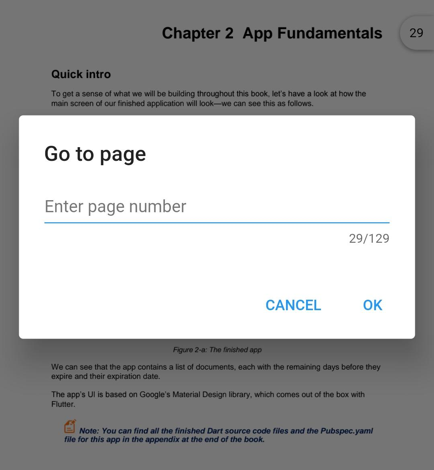
* **Page navigation** - Navigate to the desired pages instantly.
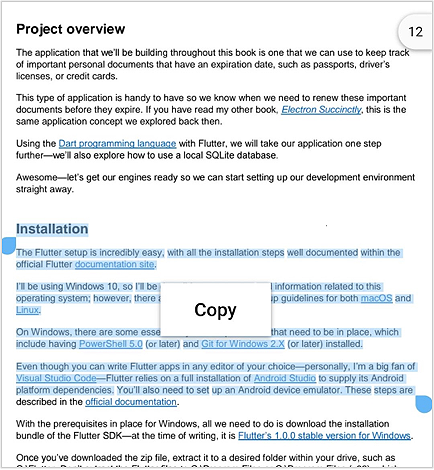
* **Text selection** - Select text presented in a PDF document.
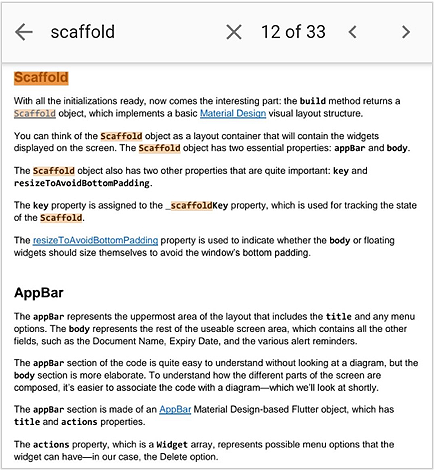
* **Text search** - Search for text and navigate to all its occurrences in a PDF document instantly.
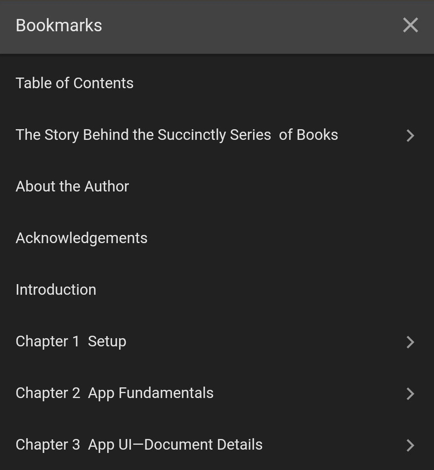
* **Bookmark navigation** - Bookmarks saved in the document are loaded and made ready for easy navigation. This feature helps in navigation within the PDF document of the topics bookmarked already.
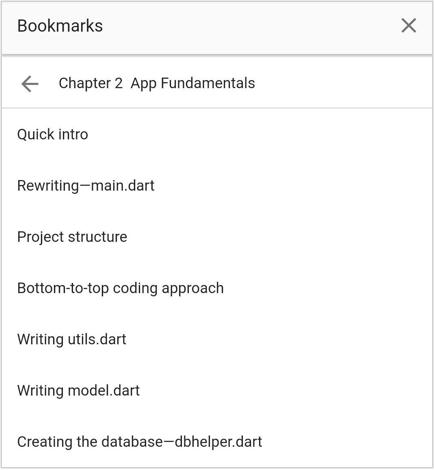
* **Document link annotation** - Navigate to the desired topic or position by tapping the document link annotation of the topics in the table of contents in a PDF document.
* **Themes** - Easily switch between the light and dark theme.
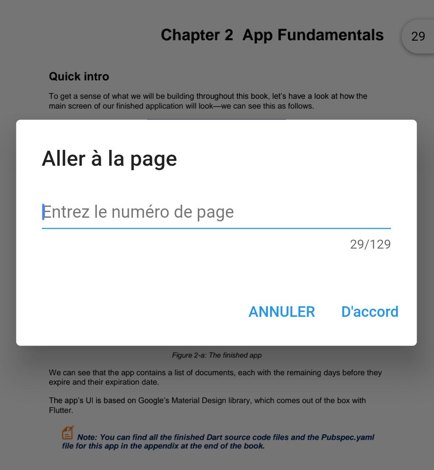
* **Localization** - All static text within the PDF Viewer can be localized to any supported language.
## Get the demo application
Explore the full capabilities of our Flutter widgets on your device by installing our sample browser applications from the below app stores, and view samples code in GitHub.







## Other useful links
Take a look at the following to learn more about Syncfusion Flutter PDF Viewer:
* [Syncfusion Flutter PDF Viewer product page](https://www.syncfusion.com/flutter-widgets/flutter-pdf-viewer)
* [User guide documentation](https://help.syncfusion.com/flutter/pdf-viewer/overview)
## Installation
Install the latest version from [pub](https://pub.dartlang.org/packages/syncfusion_flutter_pdfviewer#-installing-tab-).
## Getting started
Import the following package.
```dart
import 'package:syncfusion_flutter_pdfviewer/pdfviewer.dart';
```
## Add PDF Viewer to the widget tree
Add the SfPdfViewer widget as a child of any widget. Here, the SfPdfViewer widget is added as a child of the Container widget.
```dart
@override
Widget build(BuildContext context) {
return Scaffold(
body: Container(
child: SfPdfViewer.network(
'https://cdn.syncfusion.com/content/PDFViewer/flutter-succinctly.pdf')));
}
```
### Web integration
We have used [PdfJs](https://cdnjs.cloudflare.com/ajax/libs/pdf.js/2.4.456/pdf.min.js) for rendering the PDF page as an image on the web platform, so the script file must be referred to in your `web/index.html` file.
On your `web/index.html` file, add the following `script` tags, somewhere in the `body` of the document:
```html
```
## Load encrypted PDF document
Encrypted or password-protected document can be loaded in the SfPdfViewer widget by specifying the password in **password** property.
```dart
@override
Widget build(BuildContext context) {
return Scaffold(
body: Container(
child: SfPdfViewer.network(
'https://cdn.syncfusion.com/content/PDFViewer/encrypted.pdf',
password: 'syncfusion')));
}
```
## Customize the visibility of scroll head and scroll status
As a default, the SfPdfViewer displays the scroll head and scroll status. You can customize the visibility of these items using the **canShowScrollHead** and **canShowScrollStatus** properties.
```dart
@override
Widget build(BuildContext context) {
return Scaffold(
body: Container(
child: SfPdfViewer.network(
'https://cdn.syncfusion.com/content/PDFViewer/flutter-succinctly.pdf',
canShowScrollHead: false,
canShowScrollStatus: false)));
}
```
## Customize the visibility of page navigation dialog
As a default, the page navigation dialog will be displayed when the scroll head is tapped. You can customize the visibility of the page navigation dialog using the **canShowPaginationDialog** property.
```dart
@override
Widget build(BuildContext context) {
return Scaffold(
body: Container(
child: SfPdfViewer.network(
'https://cdn.syncfusion.com/content/PDFViewer/flutter-succinctly.pdf',
canShowPaginationDialog: false)));
}
```
## Customize the visibility of password dialog
As a default, the password dialog will be displayed when a password-protected or encrypted document is loaded. You can customize the visibility of the password dialog using the **canShowPasswordDialog** property.
```dart
@override
Widget build(BuildContext context) {
return Scaffold(
body: Container(
child: SfPdfViewer.network(
'https://cdn.syncfusion.com/content/PDFViewer/encrypted.pdf',
canShowPasswordDialog: false)));
}
```
## Change the page layout
Page layout modes describe how the PDF page is displayed. As a default, the page layout will be in continuous mode. You can change the page layout mode using the **pageLayoutMode** property.
```dart
@override
Widget build(BuildContext context) {
return Scaffold(
body: Container(
child: SfPdfViewer.network(
'https://cdn.syncfusion.com/content/PDFViewer/flutter-succinctly.pdf',
pageLayoutMode: PdfPageLayoutMode.single)));
}
```
## Switch scroll direction
Scrolling options describe how the PDF pages can be scrolled. As a default, the page will be scrolled in vertical direction. You can change the scroll direction using the **scrollDirection** property. In Single page layout mode, only horizontal scrolling is supported.
```dart
@override
Widget build(BuildContext context) {
return Scaffold(
body: Container(
child: SfPdfViewer.network(
'https://cdn.syncfusion.com/content/PDFViewer/flutter-succinctly.pdf',
scrollDirection: PdfScrollDirection.horizontal)));
}
```
## Enable or disable the double-tap zoom
As a default, the SfPdfViewer will be zoomed in and out when double-tapped. You can enable or disable the double-tap zoom using the **enableDoubleTapZooming** property.
```dart
@override
Widget build(BuildContext context) {
return Scaffold(
body: Container(
child: SfPdfViewer.network(
'https://cdn.syncfusion.com/content/PDFViewer/flutter-succinctly.pdf',
enableDoubleTapZooming: false)));
}
```
## Change the zoom level factor
The content of the document can be zoomed in and out either by pinch and zoom or changing the zoom level factor programmatically. You can change or control the zoom level factor using the **zoomLevel** property. The zoom level factor value can be set between 1.0 and 3.0.
```dart
PdfViewerController _pdfViewerController;
@override
void initState() {
_pdfViewerController = PdfViewerController();
super.initState();
}
@override
Widget build(BuildContext context) {
return Scaffold(
appBar: AppBar(
title: Text('Syncfusion Flutter PdfViewer'),
actions: [
IconButton(
icon: Icon(
Icons.zoom_in,
color: Colors.white,
),
onPressed: () {
_pdfViewerController.zoomLevel = 2;
},
),
],
),
body: SfPdfViewer.network(
'https://cdn.syncfusion.com/content/PDFViewer/flutter-succinctly.pdf',
controller: _pdfViewerController,
),
);
}
```
## Navigate to the desired pages
The SfPdfViewer provides options to navigate to the desired pages using the following controller methods.
* **jumpToPage()** - Navigates to the specified page number in a PDF document.
* **nextPage()** - Navigates to the next page of a PDF document.
* **previousPage()** - Navigates to the previous page of a PDF document.
* **firstPage()** - Navigates to the first page of a PDF document.
* **lastPage()** - Navigates to the last page of a PDF document.
```dart
PdfViewerController _pdfViewerController;
@override
void initState() {
_pdfViewerController = PdfViewerController();
super.initState();
}
@override
Widget build(BuildContext context) {
return Scaffold(
appBar: AppBar(
title: Text('Syncfusion Flutter PdfViewer'),
actions: [
IconButton(
icon: Icon(
Icons.keyboard_arrow_up,
color: Colors.white,
),
onPressed: () {
_pdfViewerController.previousPage();
},
),
IconButton(
icon: Icon(
Icons.keyboard_arrow_down,
color: Colors.white,
),
onPressed: () {
_pdfViewerController.nextPage();
},
)
],
),
body: SfPdfViewer.network(
'https://cdn.syncfusion.com/content/PDFViewer/flutter-succinctly.pdf',
controller: _pdfViewerController,
),
);
}
```
## Navigate to the desired bookmark topics
As a default, the SfPdfViewer provides a default bookmark view to navigate to the bookmarked topics. You can also navigate to the desired bookmark topic programmatically using the **jumpToBookmark()** controller method.
```dart
final GlobalKey _pdfViewerKey = GlobalKey();
@override
Widget build(BuildContext context) {
return Scaffold(
appBar: AppBar(
title: Text('Syncfusion Flutter PdfViewer'),
actions: [
IconButton(
icon: Icon(
Icons. bookmark,
color: Colors.white,
),
onPressed: () {
_pdfViewerKey.currentState?.openBookmarkView();
},
),
],
),
body: SfPdfViewer.network(
'https://cdn.syncfusion.com/content/PDFViewer/flutter-succinctly.pdf',
key: _pdfViewerKey,
),
);
}
```
## Select and copy text
By default, the PDF Viewer provides selection support for text in a PDF document. You can enable or disable selection using the **enableTextSelection** property. Whenever selection is changed, an **onTextSelectionChanged** callback is triggered with global selection region and selected text details. Based on these details, a context menu can be shown and a copy of the text can be performed.
```dart
PdfViewerController _pdfViewerController;
@override
void initState() {
_pdfViewerController = PdfViewerController();
super.initState();
}
OverlayEntry _overlayEntry;
void _showContextMenu(BuildContext context,PdfTextSelectionChangedDetails details) {
final OverlayState _overlayState = Overlay.of(context);
_overlayEntry = OverlayEntry(
builder: (context) => Positioned(
top: details.globalSelectedRegion.center.dy - 55,
left: details.globalSelectedRegion.bottomLeft.dx,
child:
RaisedButton(child: Text('Copy',style: TextStyle(fontSize: 17)),onPressed: (){
Clipboard.setData(ClipboardData(text: details.selectedText));
_pdfViewerController.clearSelection();
},color: Colors.white,elevation: 10,),
),
);
_overlayState.insert(_overlayEntry);
}
@override
Widget build(BuildContext context) {
return Scaffold(
appBar: AppBar(
title: Text('Syncfusion Flutter PdfViewer'),
),
body: SfPdfViewer.network(
'https://cdn.syncfusion.com/content/PDFViewer/flutter-succinctly.pdf',
onTextSelectionChanged:
(PdfTextSelectionChangedDetails details) {
if (details.selectedText == null && _overlayEntry != null) {
_overlayEntry.remove();
_overlayEntry = null;
} else if (details.selectedText != null && _overlayEntry == null) {
_showContextMenu(context, details);
}
},
controller: _pdfViewerController,
),
);
}
```
## Search text and navigate to its occurrences
Text can be searched for in a PDF document and you can then navigate to all its occurrences. The navigation of searched text can be controlled using the **nextInstance**, **previousInstance**, and **clear** methods.
```dart
PdfViewerController _pdfViewerController;
@override
void initState() {
_pdfViewerController = PdfViewerController();
super.initState();
}
PdfTextSearchResult _searchResult;
@override
Widget build(BuildContext context) {
return Scaffold(
appBar: AppBar(
title: Text('Syncfusion Flutter PdfViewer'),
actions: [
IconButton(
icon: Icon(
Icons.search,
color: Colors.white,
),
onPressed: () async {
_searchResult = await _pdfViewerController?.searchText('the',
searchOption: TextSearchOption.caseSensitive);
setState(() {});
},
),
Visibility(
visible: _searchResult?.hasResult ?? false,
child: IconButton(
icon: Icon(
Icons.clear,
color: Colors.white,
),
onPressed: () {
setState(() {
_searchResult.clear();
});
},
),
),
Visibility(
visible: _searchResult?.hasResult ?? false,
child: IconButton(
icon: Icon(
Icons.keyboard_arrow_up,
color: Colors.white,
),
onPressed: () {
_searchResult?.previousInstance();
},
),
),
Visibility(
visible: _searchResult?.hasResult ?? false,
child: IconButton(
icon: Icon(
Icons.keyboard_arrow_down,
color: Colors.white,
),
onPressed: () {
_searchResult?.nextInstance();
},
),
),
],
),
body: SfPdfViewer.network(
'https://cdn.syncfusion.com/content/PDFViewer/flutter-succinctly.pdf',
controller:_pdfViewerController,
searchTextHighlightColor: Colors.yellow));
}
```
## Enable or disable the document link annotation
By default, the PDF Viewer will navigate to the document link annotation’s destination position when you tap on the document link annotation. You can enable or disable the navigation of document link annotation using the **enableDocumentLinkAnnotation** property.
```dart
@override
Widget build(BuildContext context) {
return Scaffold(
body: Container(
child: SfPdfViewer.network(
'https://cdn.syncfusion.com/content/PDFViewer/flutter-succinctly.pdf',
enableDocumentLinkAnnotation: false)));
}
```
## Support and Feedback
* For any other queries, reach our [Syncfusion support team](https://www.syncfusion.com/support/directtrac/incidents/newincident) or post the queries through the [Community forums](https://www.syncfusion.com/forums) and submit a feature request or a bug through our [Feedback portal](https://www.syncfusion.com/feedback/flutter).
* To renew the subscription, click [renew](https://www.syncfusion.com/sales/products) or contact our sales team at salessupport@syncfusion.com | Toll Free: 1-888-9 DOTNET.
## About Syncfusion
Founded in 2001 and headquartered in Research Triangle Park, N.C., Syncfusion has more than 20,000 customers and more than 1 million users, including large financial institutions, Fortune 500 companies, and global IT consultancies.
Today we provide 1,000+ controls and frameworks for web ([ASP.NET Core](https://www.syncfusion.com/aspnet-core-ui-controls), [ASP.NET MVC](https://www.syncfusion.com/aspnet-mvc-ui-controls), [ASP.NET WebForms](https://www.syncfusion.com/jquery/aspnet-web-forms-ui-controls), [JavaScript](https://www.syncfusion.com/javascript-ui-controls), [Angular](https://www.syncfusion.com/angular-ui-components), [React](https://www.syncfusion.com/react-ui-components), [Vue](https://www.syncfusion.com/vue-ui-components), and [Blazor](https://www.syncfusion.com/blazor-components), mobile ([Xamarin](https://www.syncfusion.com/xamarin-ui-controls), [.NET MAUI](https://www.syncfusion.com/maui-controls), [Flutter](https://www.syncfusion.com/flutter-widgets), [UWP](https://www.syncfusion.com/uwp-ui-controls), and [JavaScript](https://www.syncfusion.com/javascript-ui-controls)), and desktop development ([WinForms](https://www.syncfusion.com/winforms-ui-controls), [WPF](https://www.syncfusion.com/wpf-ui-controls), [UWP](https://www.syncfusion.com/uwp-ui-controls), [.NET MAUI](https://www.syncfusion.com/maui-controls) and [WinUI](https://www.syncfusion.com/winui-controls)). We provide ready-to deploy enterprise software for dashboards, reports, data integration, and big data processing. Many customers have saved millions in licensing fees by deploying our software.